The potential of IFS workflows goes beyond just automating tasks within IFS. We can use workflows to gather information from different sources to help users with their daily jobs.
In this blog post, I wanted to share a fun idea that came up during a workflow introduction session for a customer. While discussing workflow tooling and the possibilities of the IFS REST Call task, got a question on if the workflows can be used to get weather forecast from an API for a specific location and sharing it with the user without any data trigger (insert/update/delete).
This is a real need for the customer, as they work in the maintenance industry, and each Work Task is tied to a location. It would help field technicians to know the weather in that area before making a visit. After some brainstorming, we decided to create a custom command on the Work Task page that would display the weather forecast for the attached location of the work task. This custom command would trigger the workflow, call the weather forecast API, and show the forecast using a User Task.
It’s rather straight-forward requirement and below is the workflow design we came up with.

Each of the steps in the workflow is described in the post and hope you can get an idea on how to create a workflow to retrieve data from an API endpoint and show to the user.
- Get Map Positions
- Validate Map Position data
- Get Latitude and Longitude
- Get Location Data
- Get the Weather Forecast
- Parse the API Response
- Show Weather Info
- Adding Command in the Work Task Page
- Summary
Get Map Positions
As I mentioned earlier, each work task has it’s location set as a Map Position attachment. After some debugging we were able find the IFS Projection call to get the Map Positions data.

We simulated the call using a IFS API workflow task as follows
- Action: Call
- API Name: MapPositionAttachmentHandling
- Call Name: GetObjConnResultSet(LuName,KeyRef):Collection(MapPosition)
- Parameter Mappings: LuName = JtTask, KeyRef = TASK_SEQ=${TaskSeq}^
${TaskSeq} is a variable which will be send to the workflow when it’s called from the command button. We’ll check that in a later step.
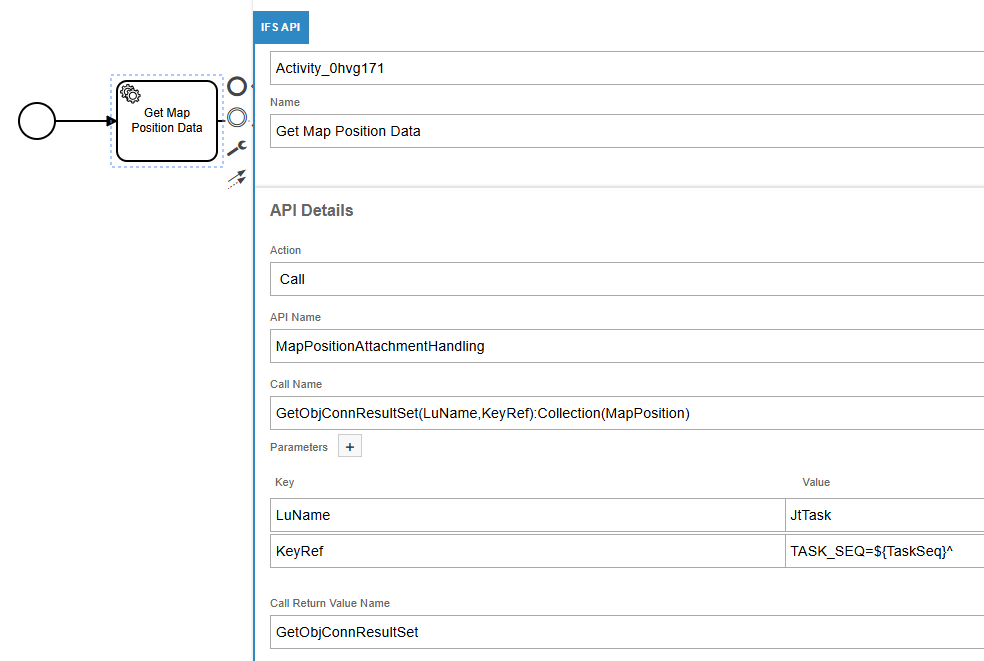
return value of this API call will be set in GetObjConnResultSet variable so we can use that later to find the coordinates.
Validate Map Position data
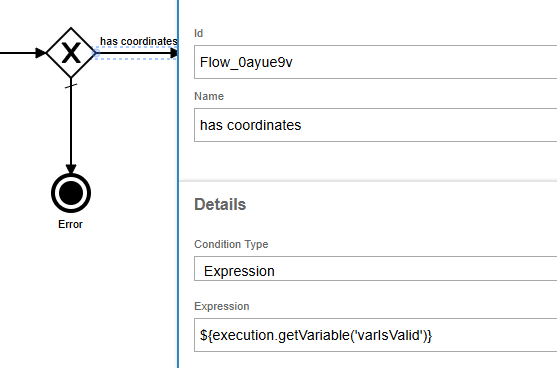
We added some validations to check if the work task has a map position defined. It was done using a simple script task which checks the length of the GetObjConnResultSet variable to see if it has any values.
var test = execution.getVariable('GetObjConnResultSet');
var isValid = false;
if (test.length > 0)
{
isValid = true;
}
execution.setVariable('varIsValid', isValid );

Then a simple validation have been added to give an error if map positions are not defined for the work task.
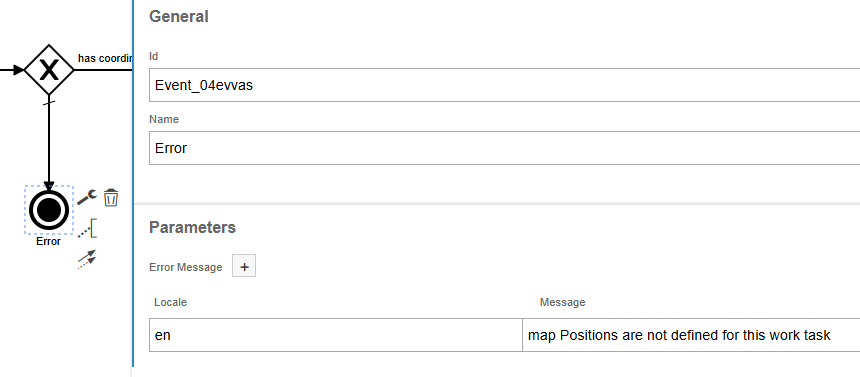
If the call to get the map positions has values, the workflow proceed to execute by checking the isValid variable set in the above script task.
Get Latitude and Longitude
We need to find the coordinates from the GetObjConnResultSet which need to get the weather forecast on the location. It was done using a script task as below.
var coordsArr = execution.getVariable("GetObjConnResultSet");
var coords= coordsArr [0];

execution.setVariable('varLat', coords.Latitude);
execution.setVariable('varLon', coords.Longitude);

Above script finds the first element of the map positions array and set the Latitude and Longitude to varLat and varLon.
This step assumes there's only one map position attachment available and thus selects the first result of the result set. If there are more map positions are attached, the logic needs to be defined to find the correct map position 😉
Get Location Data
This step is not directly connected to the weather forecast, but found as a result of checking the API calls to get the map data. I noticed that the IFS uses ArcGIS APIs to fetch the map positions and it has a reverse geocoding API where it’s possible to get the location address and the city name. I’m in the uncharted area here since the ArcGIS says it needs the request to be authenticated but it works without any authentication and I’m really not sure how it works within IFS. Really appreciate to know the comments if anyone has experience in this area.
API documentation for ArcGIS reverseGeocode API: https://developers.arcgis.com/rest/geocode/reverse-geocode/
Get the Weather Forecast
Core of this workflow is to get the weather information for a given location. We used the Norwegian MET Weather API since the customer is located on Norway and the API if free to use without any subscription.
We used the Location Forecast API which sends the weather forecast of a given location.
IFS REST Call task was used to call the API and get the response.
- URL: https://api.met.no/weatherapi/locationforecast/2.0/compact?lat=${varLat}&lon=${varLon}
- Method: GET
- Headers: Accept application/json
- Output Key: $.properties.timeseries
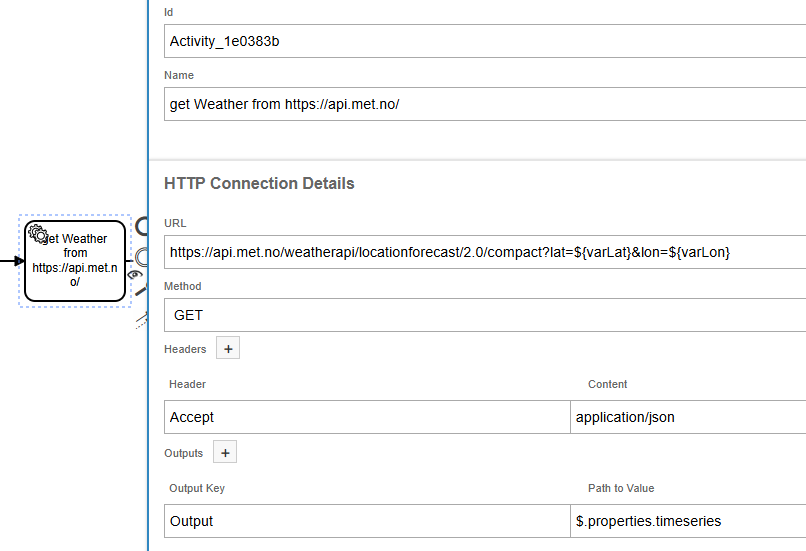
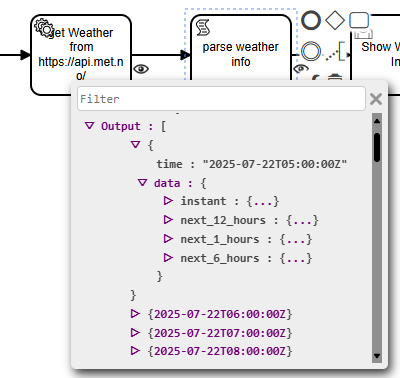
This API service sends the weather forecast of a given location for a nine-day period in JSON format. we can process the output in a script task to extract the information which we need to show to the user.
Example response from the API
Parse the API Response
A Script task was used to parse the API output and extract the data. To keep out workflow simple, we used the first record of the response which has the weather forecast up to next 12 hours. One tricky thing was that the aggregated weather forecast for next 1,6 and 12 hours has the forecast described using symbols. Therefore a JavaScript function was created to convert the symbol code into meaningful text.
// Mapping based on YR Weather Symbols
// This is not the complete mapping. Download the workflow for complete symbol mapping
var weatherSymbolMappings = {
    "clearsky_day": "clear sky",
    "clearsky_night": "clear sky",
    "cloudy": "cloudy",
    "fair_day": "fair",
    "fair_night": "fair",
    "rain": "rain",
    "snow": "snow",
    "wind": "windy"
};

function getWeatherDescription(symbol) {
    return weatherSymbolMappings[symbol] || "unknown weather condition";
};
//////////////////////////////////////////////////////////////////////////////////////////////////////

var outputArr = execution.getVariable("Output");
var firstElement= outputArr[0]; //Get the first element

resultTime = firstElement.time;

//Now
resultInstantTemparature = firstElement.data.instant.details.air_temperature;

// Predictions
result_1hrSummary = getWeatherDescription(firstElement.data.next_1_hours.summary.symbol_code);
result_6hrSummary = getWeatherDescription(firstElement.data.next_6_hours.summary.symbol_code);
result_12hrSummary = getWeatherDescription(firstElement.data.next_12_hours.summary.symbol_code);

execution.setVariable('varWeatherForecastNow', resultInstantTemparature + ' C');
execution.setVariable('varWeather1HrSummary', result_1hrSummary );
execution.setVariable('varWeather6HrSummary', result_6hrSummary );
execution.setVariable('varWeather12HrSummary', result_12hrSummary );
Show Weather Info
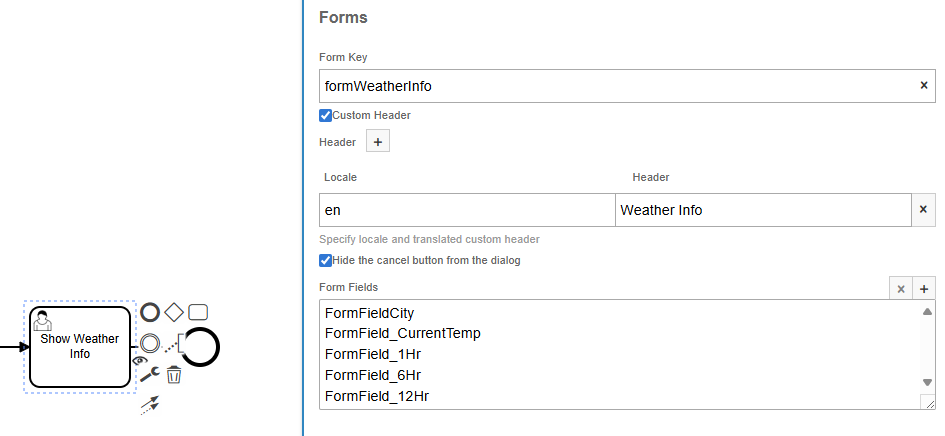
Last step of the workflow is to show the weather forecast to user using a dialog box. A User task was used for this, and the weather forecast was shown to the user using several form fields.
Adding Command in the Work Task Page
Now our workflow is ready and it was deployed so that we trigger it from a workflow command button.
Copy the workflow name which needs to be added as a workflow command.

Open the page designer of the Work Task page.
Add a new ExecuteWorkflow command in the header.

Set the values as below.

Note: This would send the task sequence of the current record into the workflow which we required as the input in the first step of our workflow. Save and publish the page configurations.
Now the command is visible in the Work task page.

When the user clicks on the button, it will show a user message with the weather forecast of the location.

Summary
Idea of this post is to share the experience of creating a workflow which calls an external API, process and present the response to a user. By this way, the workflows can be utilized to connect to APIs without any transactional data change involvement and build integrations for user experience improvements. I would love to hear your feedback and thoughts around workflows. Don’t forget to leave a comment and share the post ❤️.
Workflow for this example can be downloaded here. Feel free to import and use it!
https://github.com/damithsj/dsj23/blob/master/EL_Get_Weather_Info_version_1.bpmn
 DSJ's Blog
Hi Damith,
Thank you for this example. Please post more content to your site 🙂
Cheers
Furkan
Hi Damith
Very inspiring workflow. Please post more often to the blog ☺️
Thanks Furkan. I’ll sure try to keep up with posting more ❤️
It was a successful work, thank you
Great stuff, as always Damith!