Developing integration with IFS Cloud and other systems is always a remarkable experience for me, but almost every integration I did, there were challenges, and I had to put in a lot of effort to resolve them and get them to work. When all the problems are fixed and the integration starts working, it’s always a rewarding experience. In this blog post, I thought of listing down few tricks I learned for quick troubleshooting the integrations.
Learning material for developing integrations can be found in the IFS Documentation/IFS academy and loads of good examples are there in IFS Community, therefore I won’t go into details on coding and focus on the pain points. Here’s the breakdown of the post.
- Tip 1: Use Postman to tryout the integration before starting develop
- Tip 2: Test Authentication Method
- Tip 3: Build the Request Step by Step
- Tip 4: Use URL parameters
- Tip 5: Handling SSL Certificate Errors
- Some useful links
Tip 1: Use Postman to tryout the integration before starting develop
Often the integrations involve 3rd parties and getting help to resolve the problems is not an easy task. Therefore testing out the integration with Postman or any other API testing tool is always a time saver before starting the developments. My basic rule is that if it works in Postman, it should work with IFS. If it’s not working in IFS, probably it’s a bug 🐞.
Tip 2: Test Authentication Method
Almost all API nowadays need some sort of authentication and OAuth2 is becoming more common practice. Different Identity platforms require specific authentication request format. IFS REST API authentication has evolved so much during the years but still there are some limitations. I found Postman Mock Server works pretty well to test the Authentication request format. We’ll see how to troubleshoot an authentication request using Postman Mock Server.
Before starting, you need to create a Postman mock server. I usually keep one generic Mock server with few request urls and request methods to try out different types of request.
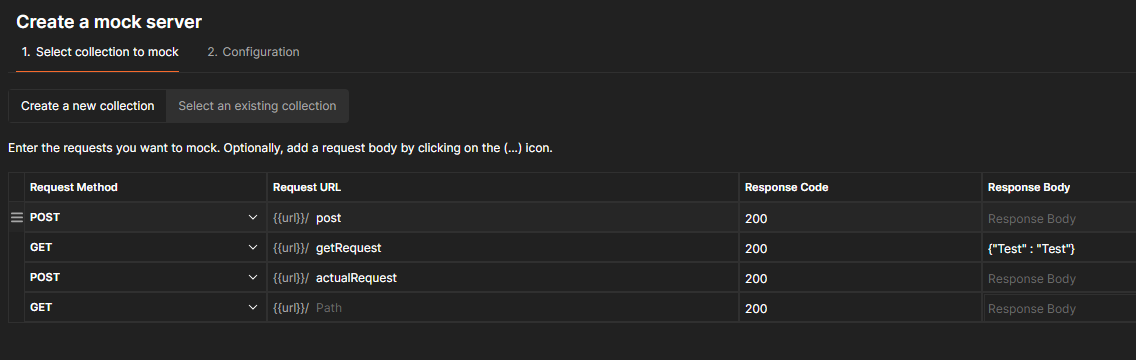
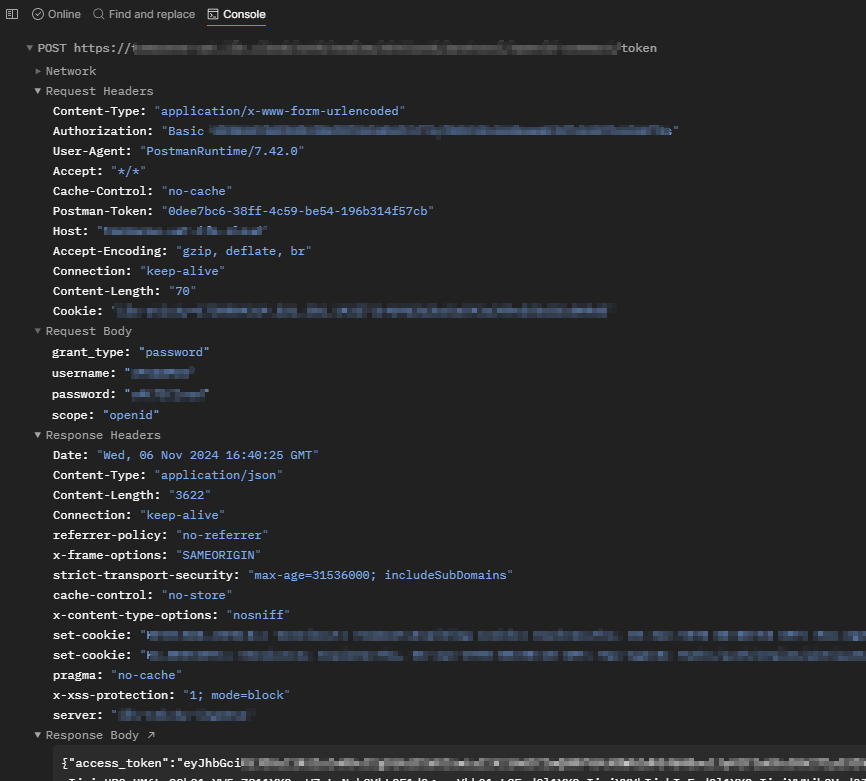
Step 1: Create a postman request to get an authentication token from your endpoint. In the Postman console, you can check the request and response.
Below is postman console output for authentication request using OAuth2 password credential type.
Step 2: Setup a routing address with the same Authentication setup needed by the API and set the Token Endpoint as the Postman Mock Server URL.
My Mock server URL path for the token request is as follows
https://xxxx-yyyyy-zzzz.mock.pstmn.io/post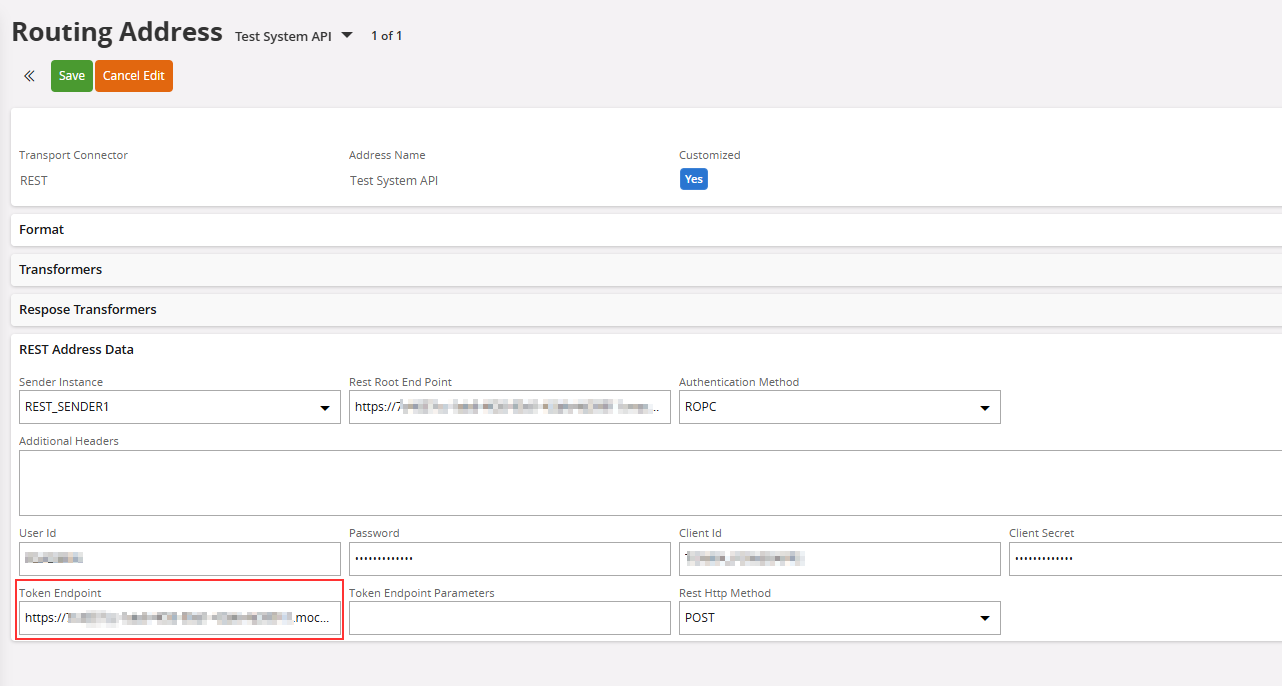
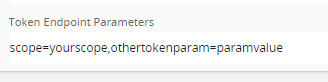
✅ grant_type will be automatically added to the token request by framework when you select the Authentication method. Other Token Parameters such as scope can be added in the Token Endpoint Parameters as key=vale pairs separated by comma (,).
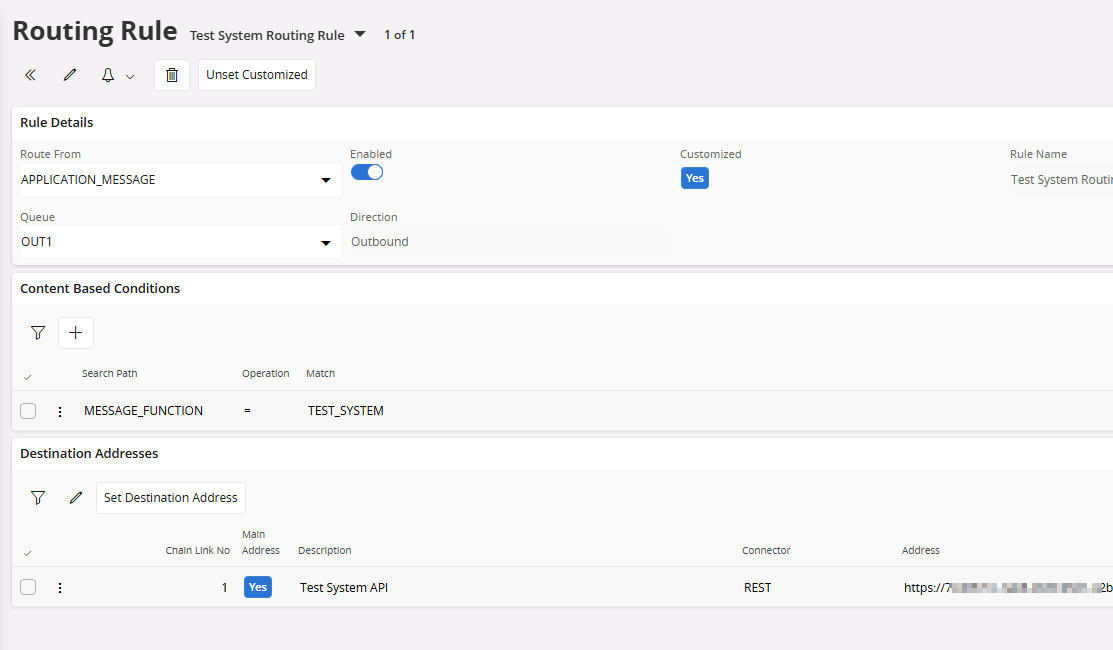
Step 3: Create a Routing Rule to send the application message to the correct address. In the below example I created a simple rule which routes based on the Message Function
Step 4: create an outbound message using Plsql_Rest_Sender_API.Call_Rest_EndPoint_Json
I'm using Plsql_Rest_Sender_API.Call_Rest_EndPoint_Json method since my objective is to call an REST endpoint with a JSON payload. There are several methods available in Plsql_Rest_Sender_API for different purposes. You may use the method suitable to your requirement.
DECLARE
  json_ CLOB;
  message_id_ NUMBER;
BEGIN

  Plsql_Rest_Sender_API.Call_Rest_EndPoint_Json(rest_service_ => 'TEST_SYSTEM',
                                                json_ => json_,
                                                message_id_ => message_id_,
                                                http_method_ => 'POST');
  COMMIT;
END;
At this point you need only to route the application message to the postman mock server to verify the token request. Therefore only requirement is to match the rest_service_ parameter to the Message function defined in the routing rule. Application message created from this will fail, but on the Postman Mock Server log, you could find the request which IFS sent for fetching a token.

Check the Request Headers and Request Body values and compare with the Postman console values obtained in Step 1. By this way, it’s easy to configure the token request without endless battles with the API provider.
Step 5: Once you identified the values for the authentication request, set the correct token endpoint in the routing address, and point the Rest Root Endpoint to the Mock server.
My Mock server URL path for the root endpoint request is as follows
https://xxxx-yyyyy-zzzz.mock.pstmn.io/actualRequest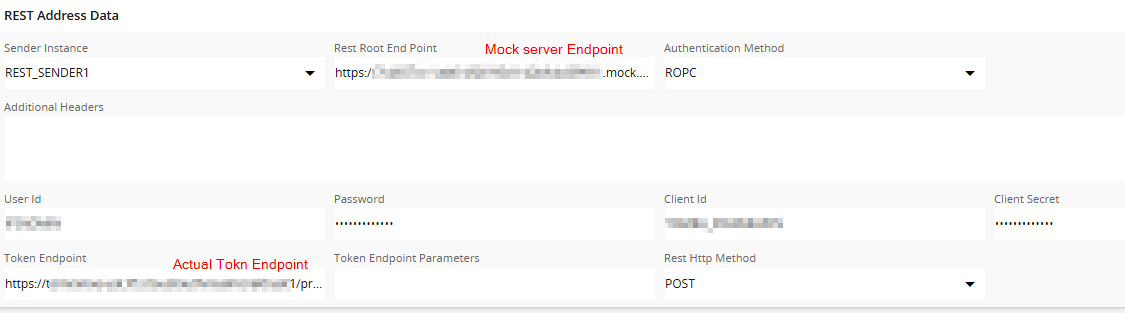
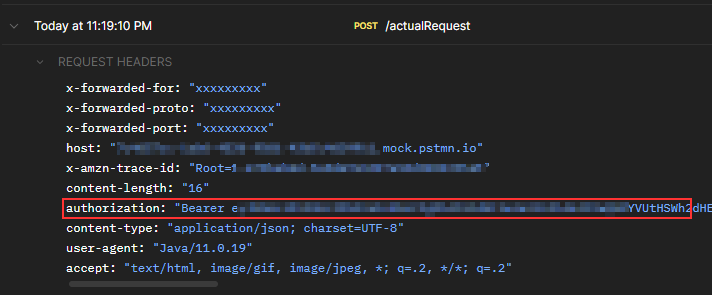
If everything works as expected, IFS should fetch the token from the token endpoint and add to the request sent to the mock server. You can verify that by checking the Mock server log request and look for the authorization header.
OAuth2 Client Credentials – Set the Credentials in Header or Body
In the OAuth2 Client Credentials flow, token request can contain the client id and secret in Basic authentication header, but some APIs require it to send them in the body request parameters.
By default IFS REST sender adds the client_id, secret in both Basic Auth Header as well as in the body, but some vendors doesn’t like it. Specially if you are authenticating with Azure AD, this could be the problem that you are not getting the access token.
IFS has added a new JSF property to control this behavior somewhere around 23R1 as I guess (couldn’t find a document which mentioned about this fix) and in Apps 10 UPD 22.
To set this up:
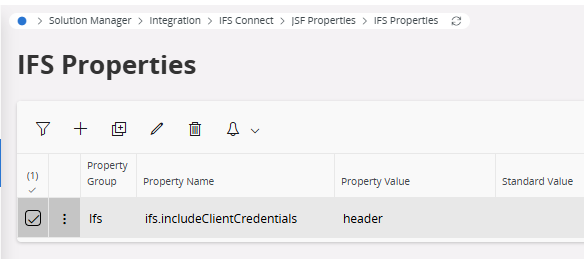
- Go to Solution Manager > Integration > IFS Connect > JSF Properties IFS Properties
- Add a new record. Set the Property name = ifs.includeClientCredentials
- Value can be one of these: body|header|both
Check this IFS Community post for more details on this: Token request problem in Client Credentials flow | IFS Community
Tip 3: Build the Request Step by Step
Your API maybe needing different headers to set, parameterized URLs and many more other requirements for a valid request. There are several helper PL/SQL packages available for different purposes and it will take some time to build the final code. You can use the Mock server to try out and validate different settings and the payload.
Tip 4: Use URL parameters
URL parameters (url_params_) is a really useful parameter in the Plsql_Rest_Sender_API.Call_Rest_EndPoint_XXX() methods. It comes handy when there are several integrations pointing to the same API but different url paths. You could keep one routing address, routing rule and send the request to different paths using url parameters.
Given below is a sample outbound REST API call made with URL parameters and some custom headers.
Above code is tested in 24R1 and the procedure syntax mays be different according to the IFS version.
Tip 5: Handling SSL Certificate Errors
SSL errors are nightmare to solve and I have spend much time struggling them. Here are some tips on solving some common SSL errors.
Server SSL Certificate is not Trusted
If the SSL certificate of the endpoint is not a trusted one, it needs to be added in the keystore of the client (In this scenario, IFS Connect). You can update the certificate from the Routing address. Keep in mind that all the certificates in the certificate chain should be included in the uploaded certificate. here’s a simple way to create a valid files with the certificate chain using openssl.
Download and install openssl and run following in a command prompt
openssl s_client -showcerts -connect yourapi.com:443
This will print the chain of server certificates in the command prompt.
Copy each —–BEGIN CERTIFICATE—– …—–END CERTIFICATE—– blocks to a file and save it with file .pem file extension. it should look something similar to below, but the size of a certificate is larger than what’s here.

Upload the certificate in the routing address

Two-Way SSL Mutual Authentication
If the API you are trying to connect requires Two-Way SSL Mutual Authentication, then a client keystore needs to be created and added with the request. Let’s see how to do that. In order to proceed with two-way SSL, you need a client certificate obtained from the API vendor and a private key. Using below command, you can generate a pkcs12 file
openssl pkcs12 -export -in cert.pem -inkey "privateKey.pem" -certfile cert.pem -out myProject_keyAndCertBundle.p12
Give a password when creating the file
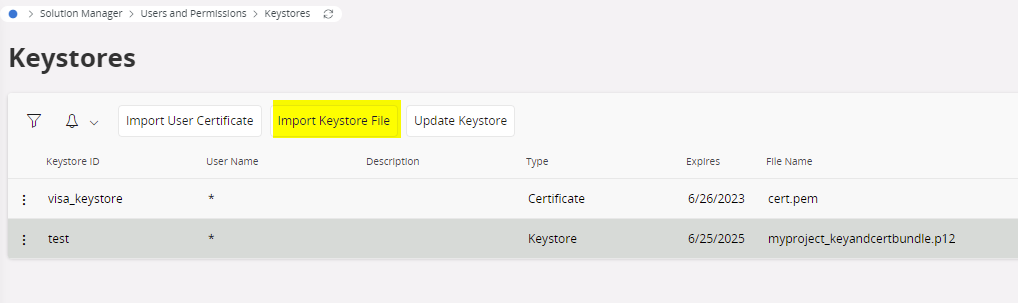
Go to Solution Manager > Users and Permissions > Keystores. Create a new keystore (Import keystore file), provide same password added above.
In the routing address, add the keystore as additional headers
ssl:KeyStoreId=test
ssl:KeyStoreType=PKCS12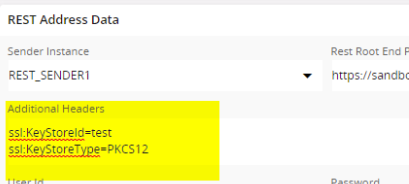
According to IFS Documentation, there are several other SSL parameters. But in IFS Cloud, only the ssl:KeyStoreId is required since others may refer to Apps10 or On-premise installations where you need to have a file stored in some location.
Some useful links
- Routing Rules and Addresses
- Plsql_REST_Sender_API
- Configure the REST Transport Connector
- Tutorial: Two-Way SSL Mutual Authentication – Visa Developer
Hope you picked up some new stuff about IFS Cloud developments from this post and saved some time on your next integration development! Drop a comment with your thoughts and share if you think this is useful for others.
 DSJ's Blog
Your blogposts always make for a good read!
Thanks Marcel ☺️