When I started developing on IFS Cloud, I didn’t have much faith in the workflows since every time I started developing a flow, it rather had a limitation so had to turned into PLSQL event action or a customization. Over the time, it’s impressive to see how the workflow tool has evolved and now I’m a really a fan due to the capabilities which were not possible in previous IFS versions such as Process enrichments and REST API calls.
Blog post What you need to know about IFS Business Process Automation by Chris Wharton was an eye opener for me to start writing about workflows. Chris has done a really good analysis on workflows and I agree to the every word, specially, start small!
This blog post dives into an exemplary use case of IFS Cloud Workflows, providing a step-by-step guide to help you create your first workflow.
Business Scenario
This post is about creating a simple workflow with Process enrichment, a really cool capability of workflows. In one IFS Community post, an user has asked if it’s possible to Set Default Language to English (en) and Country to United States (US) by default when a customer or supplier record is created.
This may look a simple requirement, and a very good example of improving efficiency since these are mandatory fields Customer/Supplier creation if you have most of local customers and suppliers, it would save some clicks and typing when creating a record.
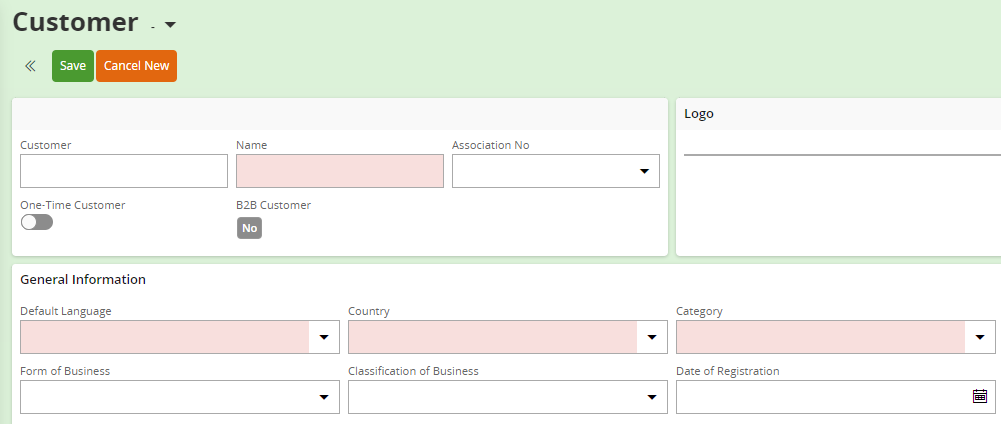
If we were to do this in IFS 10 or earlier, a customization would be needed even though it’s a very small change. We’ll dive into details how it can be done using a simple workflow.
Workflow Configurations
The idea here is to set default values when creating a record. Most suitable workflow type for this type of a requirement is Process enrichment workflow types, which makes possible to alter the input values (enrich the transaction) during a projection operation call.
Step 1 – Understand the Projection calls from the client
You can open the browser DevTools or the IFS log window, and press New record button. It will list down the projection calls made to get the default values. My personal choice is DevTools and in the Network tab, you can see the the projection call to get the default values and the response.
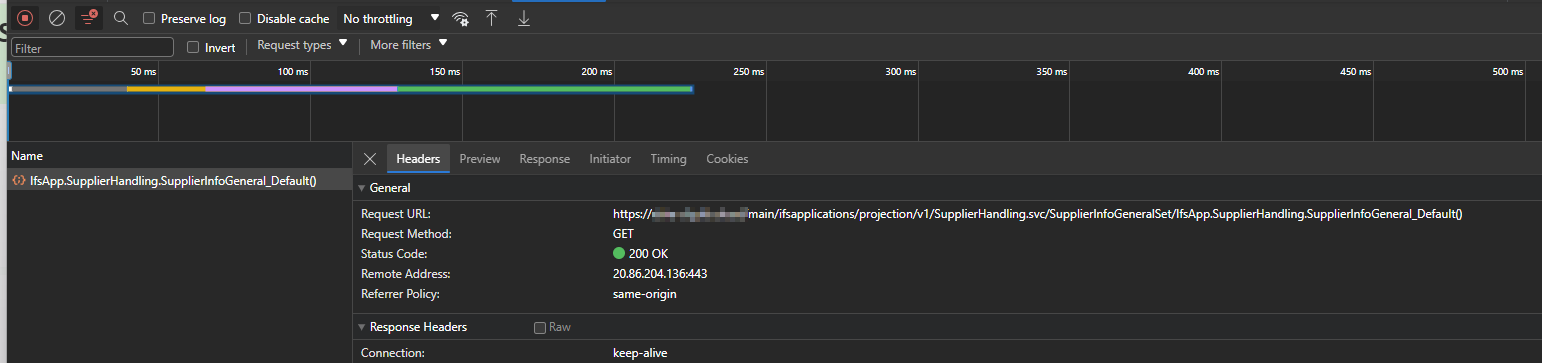
GET /SupplierHandling.svc/SupplierInfoGeneralSet/IfsApp.SupplierHandling.SupplierInfoGeneral_Default()
What we can do to set the default values is to modify the response payload, and set the desired values from the workflow.
Step 2 – Creating the Workflow
- Navigate to the Workflow page, and create a new workflow. Give a Process key and create.
- It automatically creates the first version when creating the workflow. We can now start designing our workflow configuration. Click the Design button. It will open the Workflow Designer.
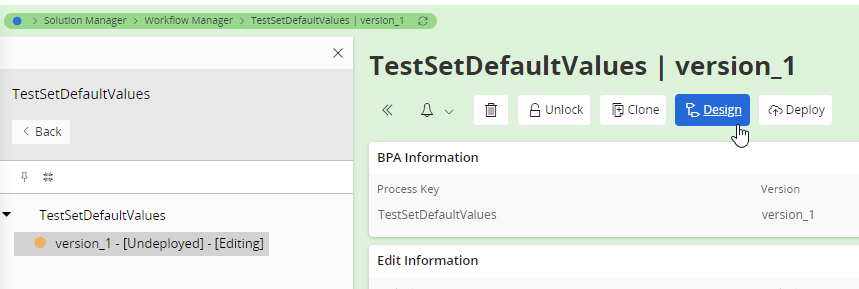
Our workflows only needs two tasks. Script task to set the default values and IFS Process Enrichment task to add the values to the response.


- Validate and Deploy the workflow.
Step 3 – Creating the Trigger
We need to run the workflow when the projection call /SupplierHandling.svc/SupplierInfoGeneralSet/IfsApp.SupplierHandling.SupplierInfoGeneral_Default() is execued.
- Add a new Projection action and put SupplierHandling as the Projection Name.

- In the Projection Action Configuration, set following values
- Action Type: CALL
- Call Name: SupplierInfoGeneral_Default():SupplierInfoGeneral
- Execution Type: Process Enrichment
- Timing: After
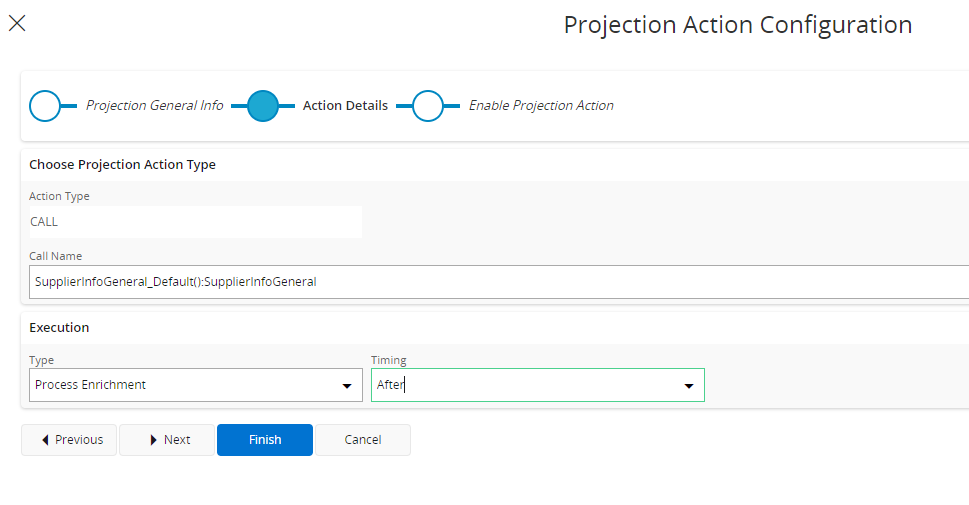
- Enable Projection Action in the next step and Finish
That’s all we need to do to make this work!
Go back to Supplier page and Add New. Now you should get the Country and Default Language pre-filled.
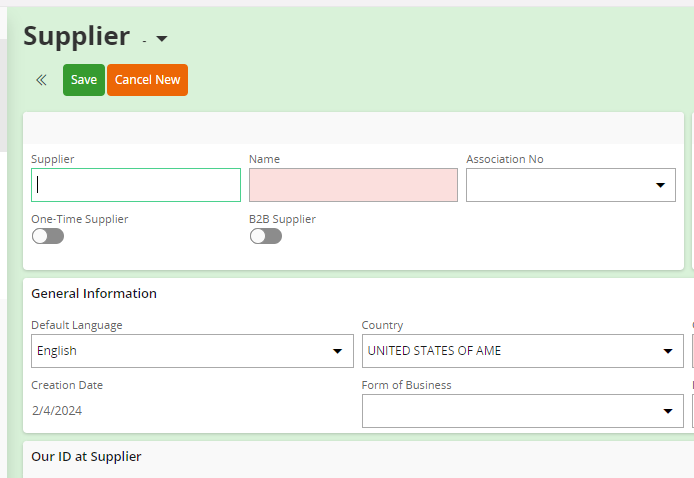
Extending the Workflow
Now we have the basic working workflow in place and the possibilities are unlimited to extend the workflow according to your business needs.
One example is that the same workflow can be used to set default values in Customer since it also has the same fields. You just need to add another projection action to the workflow.

You can even use the same concept to fetch the values from an external API and set them accordingly.
I hope this would give a basic understanding on how to begin with workflows and use it in the business requirements. Stay tuned for more interesting scenarios using workflows.
Please comment your thoughts and if there are any interesting scenario I could be use for my next post!
Notes:
2024-11-29: Nader Georgi shared some valuable insights regarding errors when setting default values using a workflow. He was trying to set the default values in Customer-> Sales tab (CustOrdCustomer_Default():CustOrdCustomer) and got following error.
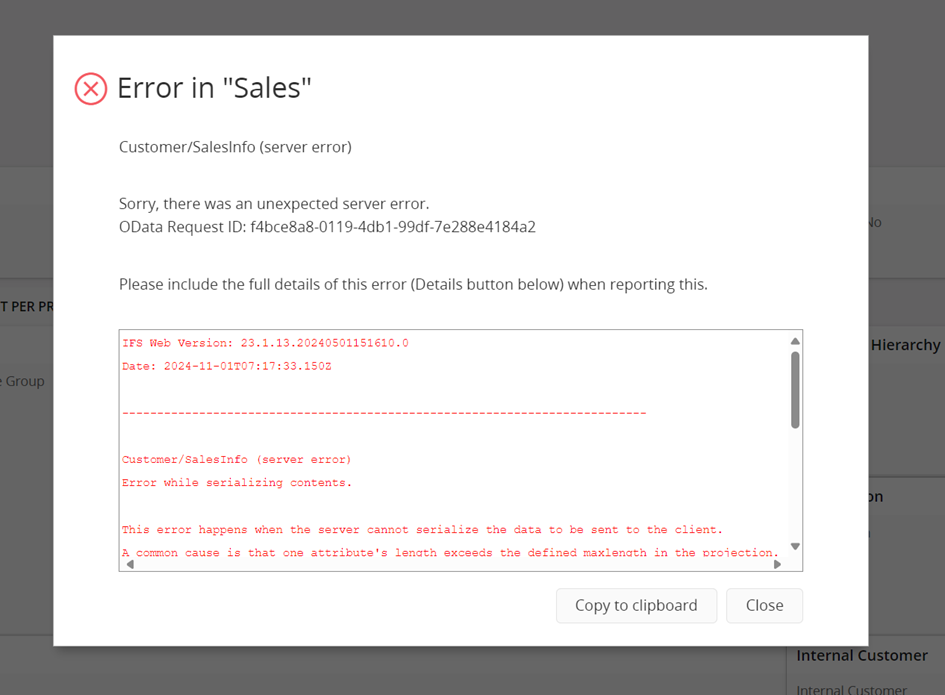
Customer/SalesInfo (server error)
Error while serializing contents.
This error happens when the server cannot serialize the data to be sent to the client.
A common cause is that one attribute's length exceeds the defined maxlength in the projection.
To find more info, open Log Window or Debug Console, refresh and then check Network Tab in DevTools. In the response there can be more detailed information about the exception.
Error details: N/A
IFS Support response:
Since the script task has already assigned the default values to the relevant variable, there's no need to export the value using the process enrichment task. Therefore, please delete the enrichment task and re-deploy the workflow.

Even thow i didn't understand how the script was able to export the value without the process enrichment block, IFS solution resolve the problem but the main issue was not resolved which was :
The process enrichment step should overwrite the existing variable.
The overwrite is done using the same value with the same variable name, why does the size of the request getting bigger and generating size error?

The case has been accepted and a correction is planned for :
23.1.21
23.2.14
24.1.8
24.2.2
25.1E.0
 DSJ's Blog
Hello everyone,
When scheduling an operational report, we would like the default option of Recurrence Pattern to be the Date instead of Daily.
Currently, most users leave Daily without adjusting the time (00:00), which results in a large number of reports being generated at midnight.
We thought to add a camunda workflow on the report projection default values would resolve the issue (we thought wrong)
While debugging the workflow, we noticed that no trace is generated when opening the schedule screen. This indicates that the workflow is not being triggered, even though it is active for the default projection call.
Is it not possible to modify via workflow the report projection ?
Your help would be appretiated.
Thank you in advance
Hi Nader,
I haven’t try workflows on report projections therefore can’t give an exact answer. If I find something interesting will get back to you.
Thank you Damith, really good explanation.
Roshan
Thanks Roshan 🙂
Hi Damith,
Great post! I’ve started my first workflow based on your post, as we need to implement a similar requirement. Specifically, we need to set the “Send Email” toggle to true by default when the print dialog opens.
I created the workflow and followed the same steps. The call name I’m using is PrintDialogInit(ResultKey):PrintDialogStruct. The workflow triggers without any issues, but the toggle value is not being set to true.
Is this method unsuitable for setting default values in dialog boxes?
I’ve attached links to the images for reference.
image 1
image 2
image 3
image 4
image 5
image 6
image 7
Thanks
Danushka
Easy to follow post and well explained. I’ve tried to apply this knowledge to other projections but they aren’t being triggered.
For instance the Payments page within Suppliers uses the call SupplierInfoGeneralSet(SupplierId=’ABC123′)/SupplierPayments(blah,blah)
So I expected within the Projection Call for to select the below, but it’s not an option in the dropdown:
Call Name: SupplierInfoGeneral_Default():SupplierPayments but that doesn’t exist.
Can you advise how to trigger on Supplier / Payments page?
Hi JC,
Really sorry for the late reply. Somehow I missed your comment.
Since you have mentioned _Default(), I assume you are trying to run the workflow to add some default values
Is your requirement to trigger the workflow when a user press the New (+) button on Supplier > Payment?
In that case, use the projection action as follows
Projection: SupplierHandling
Action Type: Call
Call Name: IdentityPayInfo_Default():IdentityPayInfo
Otherwise let me know what you are trying to achieve, I’m happy to help!
Is it possible to add a condition to change the default values only if the company for a new entry on the example page PrepareWorkOrder is equal to ‘TEST’? If so, how?
Hi TK,
Yes, it’s possible. You can add a condition before setting the default values to check the company. In the below example I assumed the projection call has CompanyId attribute and used that in the condition. Otherwise you need to get the company ID using IFS projection call.
Thank you! That’s what I was missing. I got a bit lost because the company is automatically filled in by retrieving the default from the user, and after manually changing it, it’s already too late and the prepared value remains unchanged.
Nice post Damith. Thanks.
Thanks David, Hope it will be useful for you to do some wonders 🙂