Digital signatures in documents are a secure method to verify the authenticity and integrity of a digital document. It relies on public key cryptography to create a unique digital code that is attached to the document.
Using the digital signatures feature was available in IFS Reports and Documents Management since IFS 10, but this has been a hot topic recently due to the new addition of electronic signature (E-Sign) feature in IFS Cloud.
Digital Signature vs Electronic Signature
Although these terms are often used interchangeably, they are not the same and serve different purposes. A digital signature is used to secure a document to avoid further modifications and to prove the authenticity of the sender while electronic signature is a proof that the signee has agreed to the conditions stated in the document.
This video showcases the newly introduced E-Sign feature in IFS Cloud (Copyright: ifs.com)
In this article, I will be guiding the digital signing capabilities of IFS Reports and how to benefit from this feature to secure IFS generated reports or documents such as Invoice, Customer/Purchase Order, Quotations…etc. which needs to distribute to 3rd parties.
Content…
- Digital Signature vs Electronic Signature
- Digital Signatures in IFS Reports
- Setting up the Keystore
- Creating the Report Rule
- Adding the User Signature
- References
Digital Signatures in IFS Reports
IFS Reports can be digitally signed and certify to prevent further changes using report rules. There are two possibilities to sign a generated report PDF.
- Sign using a common certificate
- Sign using a user certificate
You can choose the preferred method according to the need, but in both options, it would require a valid certificate obtained from a certificate authority.
Setting up the Keystore
As mentioned above, we need a valid certificate to be used for the signing. Note that it requires to upload the certificate in .pfx format to the IFS keystore. For this post, I’m using openssl to generate a self signed certificate but to be trusted by a 3rd party, a certificate shall be obtain from a proper certificate authority.
Commands to Create the certificate using openssl
>openssl req -x509 -newkey rsa:4096 -keyout ifs_key.pem -out ifs_cert.crt -sha256 -days 365
>openssl pkcs12 -inkey ifs_key.pem -in ifs_cert.crt -export -out ifs_cert_pfx.pfx
Adding the certificate to IFS keystore
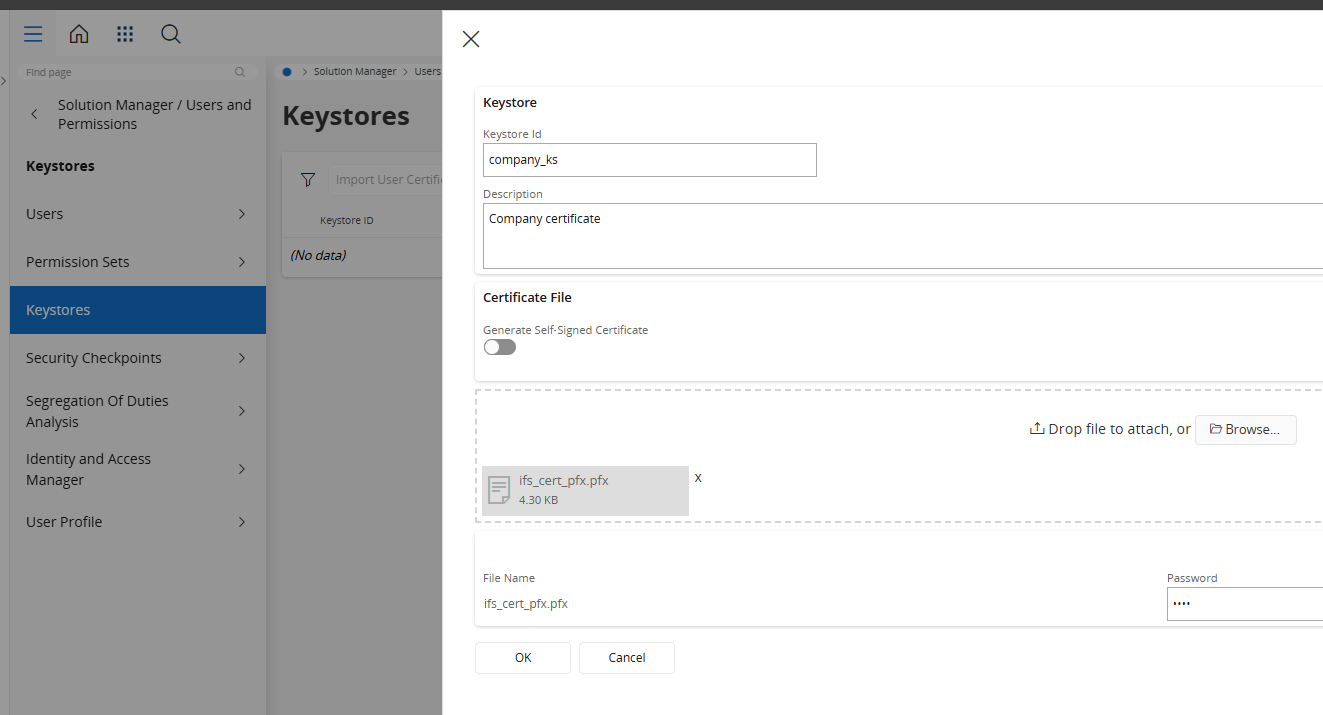
Navigate to the Keystores page and press Import Keystore File
Name the keystore ID and drag and drop the pfx file created/obtained from CA
Creating the Report Rule
In this example, I’ll be adding the digital signature to the Purchase Order report.
Navigate to Report Rule, Create a new report rule for Report ID: PURCHASE_ORDER_PRINT_REP
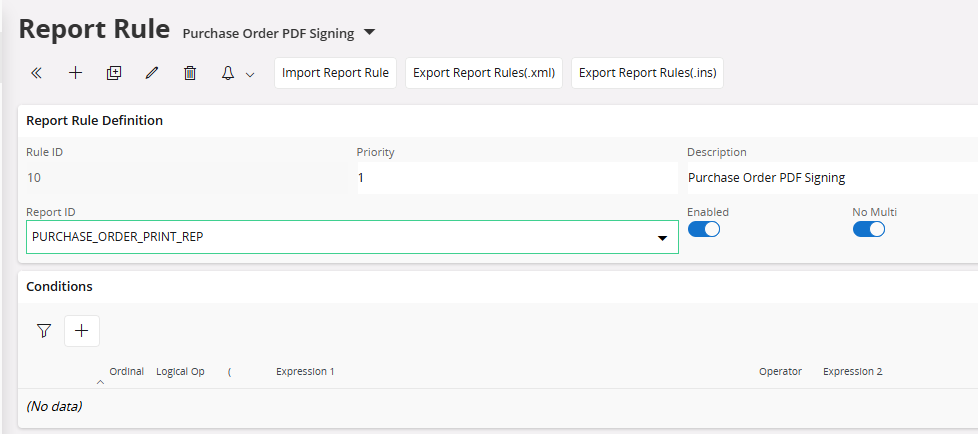
I’m not adding any conditions for the report rule, but you can do that to conditionally send signed pdfs.
Now create a new Action and choose Sign PDF as the Action name. Press Next.
If you have several actions, Sign the PDF needs to be added after setting the properties and as the last action before send email actions if any.
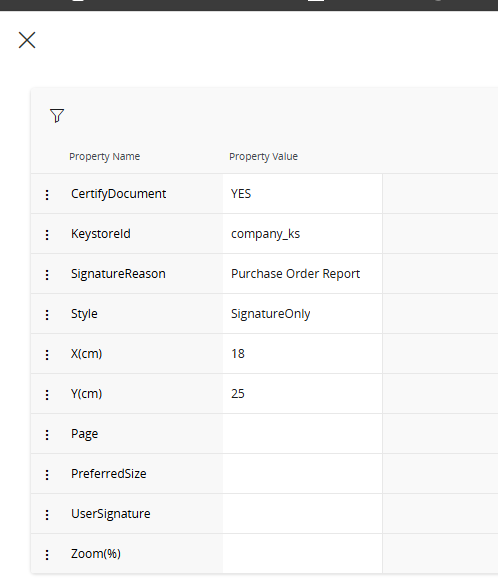
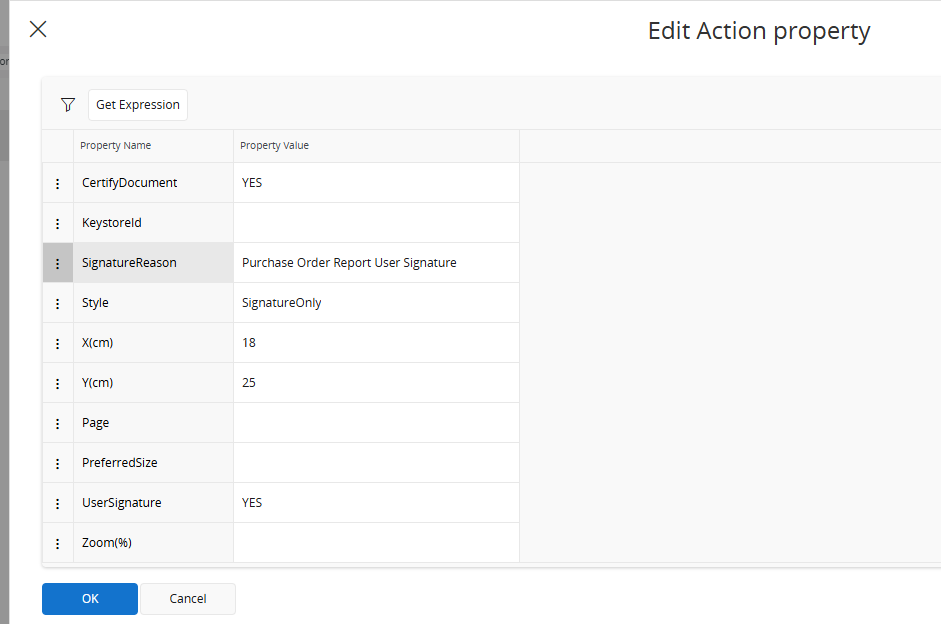
Important properties you need to remember are…
- CertifyDocument – Prevent further changes to the generated report PDF. This is an optional value.
- KeystoreId – Key store id which setup in the above step. This property is mandatory if you are using a common certificate.
- SignatureReason – Mandatory property which will added to the signature panel
- Style – Defines how the signature should look like.
- UserSignature – If set to YES, document will be signed by the current user who ordered report. Setup for this will be explained in the next step.
Tip: In above example, I have adjusted X and Y so that the signature will appear on the right bottom of the report. X, Y positions need to be adjusted with the size and orientation of the report layout.
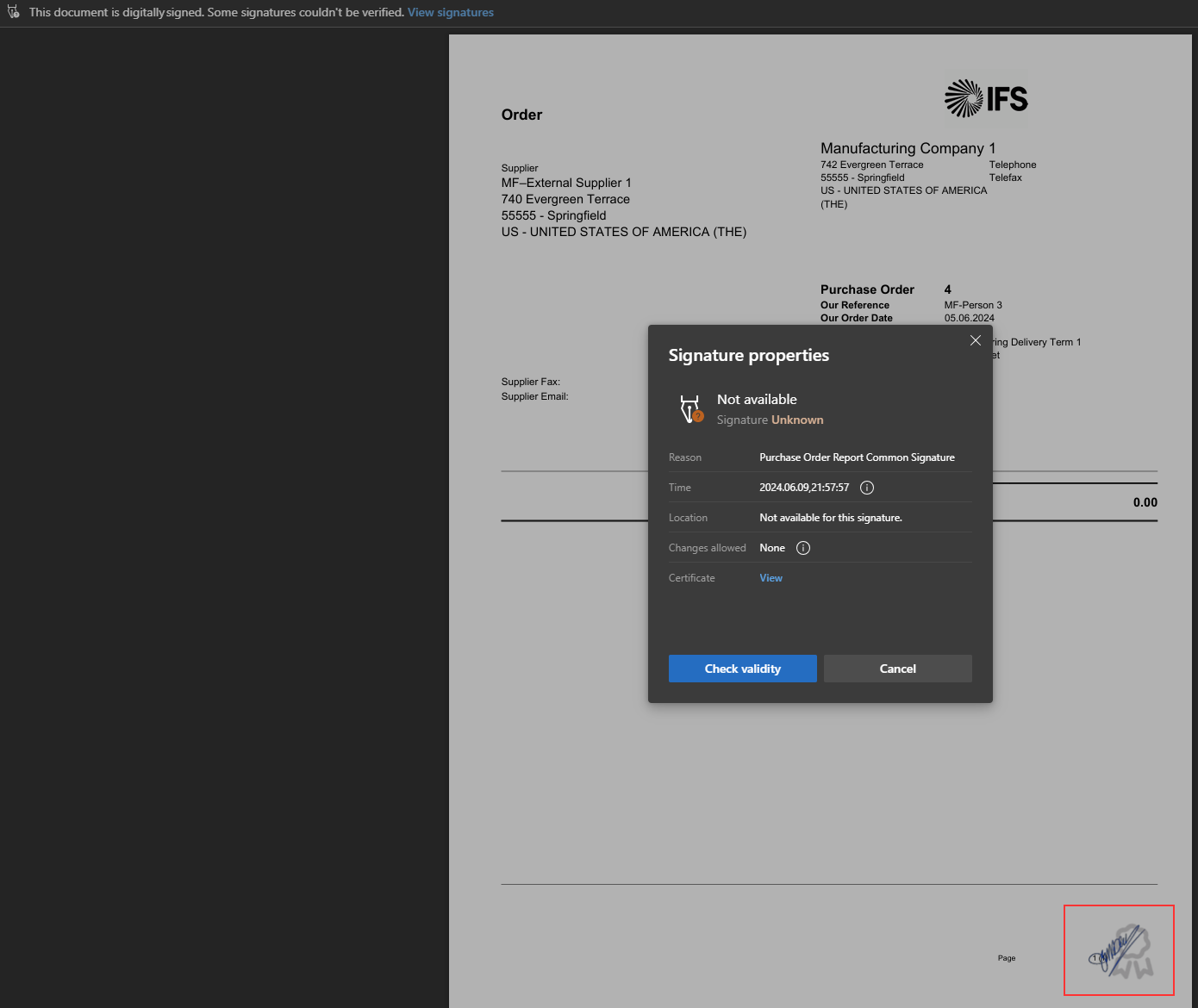
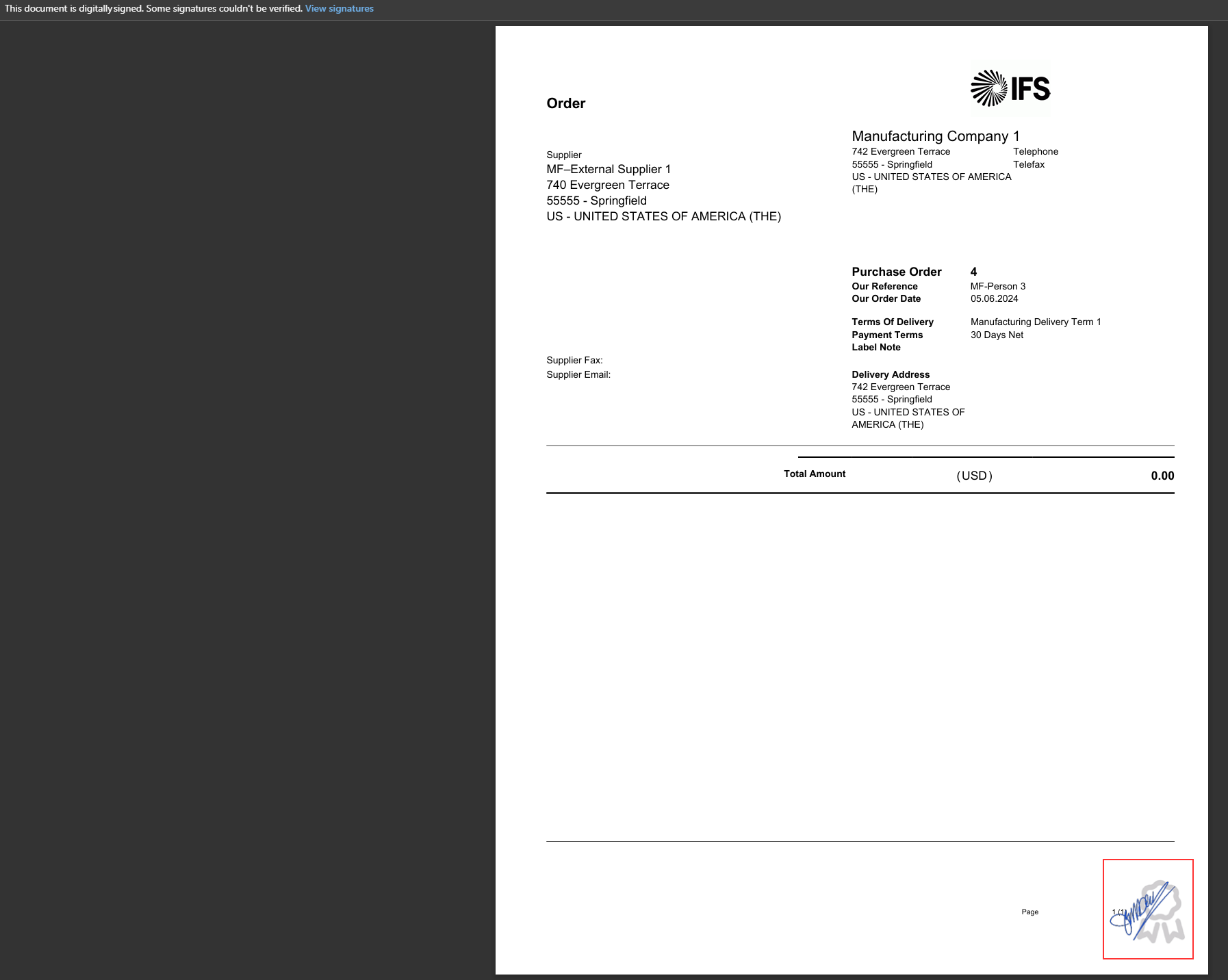
That’s all you need do to sign the report using a common certificate! Preview the Purchase order report and you’ll notice the signature in the bottom and the signature information

Adding a Common Signature Image
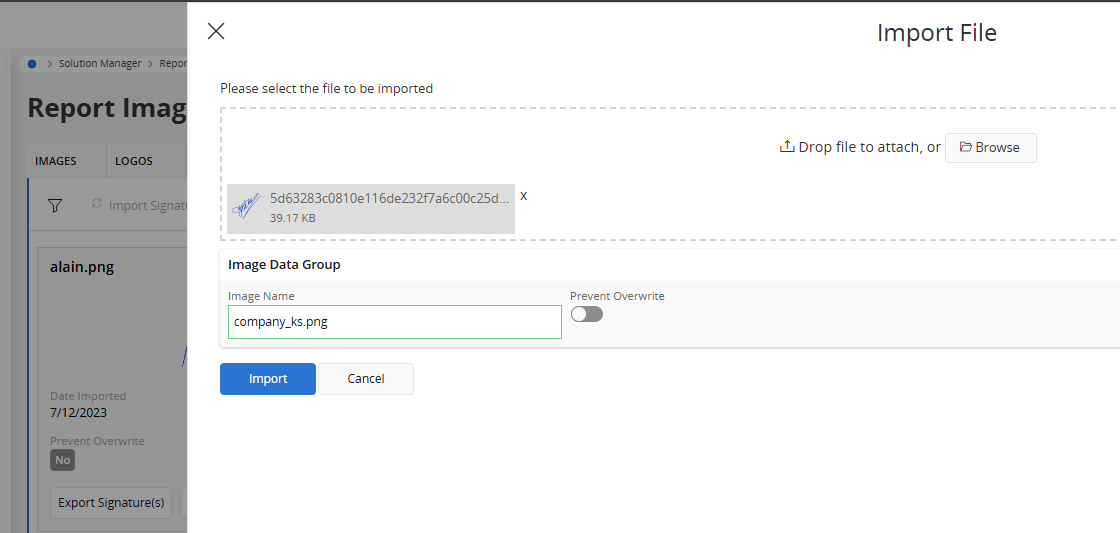
If you would like to use a real signature as the company signature, you can add a transparent png image of the signature in the Report Images > Signatures and provide the Image name as <KEYSTORE_ID>.png
Adding the User Signature
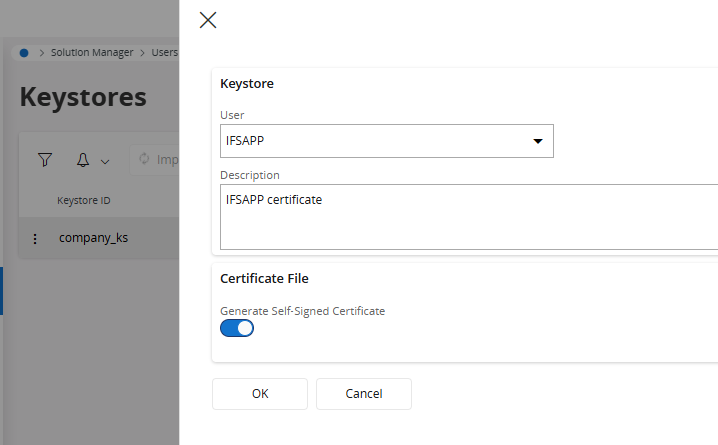
It’s also possible to sign the report PDF with a personal certificate. Then it will use the certificate of the who ordering the report as the digital signature. In order to do that, go to the Keystores, and Import User Certificate.
Choose the user ID and import a valid certificate in .pfx format
Optionally, it’s possible to create a self-signed certificate but in the real-world, it has to be a certificate obtained by a CA for validity.
In the Report Rule, Select YES to UserSignature. You can leave the KeyStoreId empty since now the certificate connected to user who orders the report will be used for signing.
Adding a User Signature Image
When using the User signature option, it’s possible to add the user signature as an image. In order to do that, navigate to Report Images, Signatures, Import Signature.
Use the Image Name as <USER_ID>.png
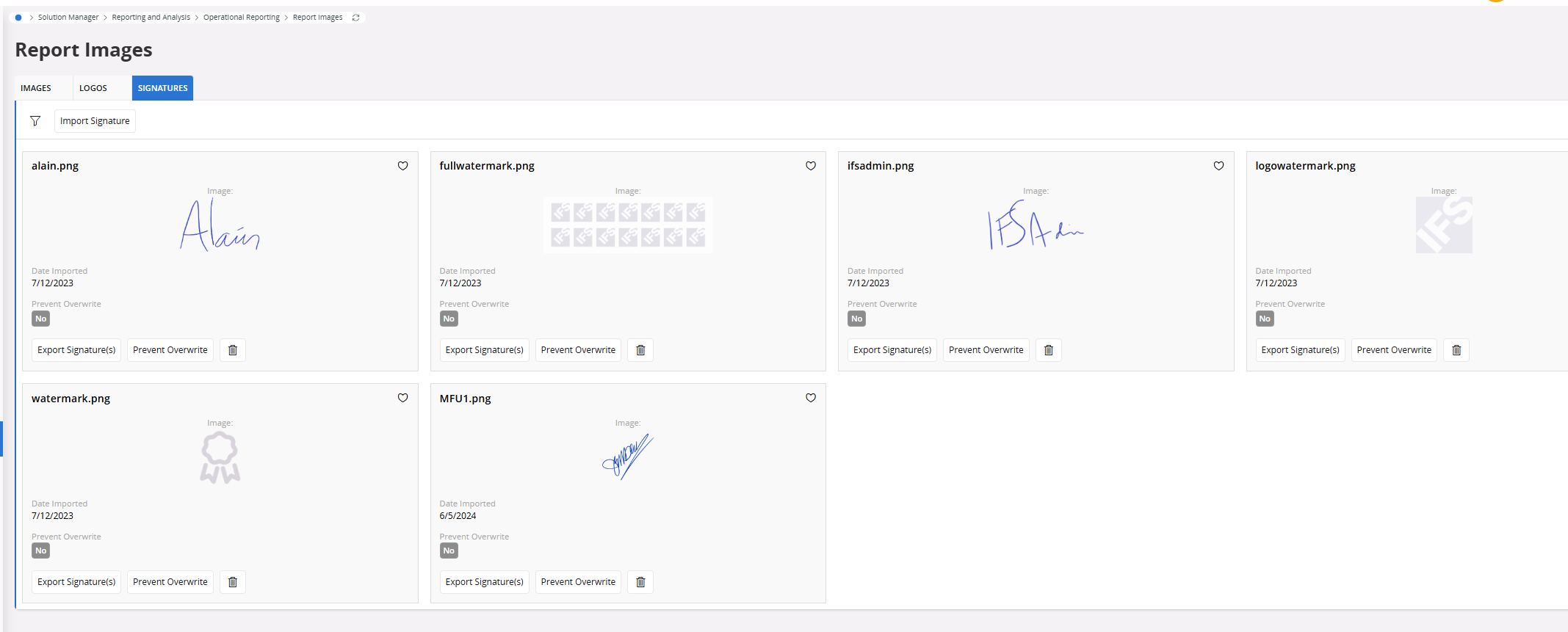
Tip: Using a signature image png with transparent background would result in more realistic appearance of the signature in the report
References
- Keystores & Digital Signatures
- Report Rules
- Report Images
- Digital Signatures in Document Management
- Configure Report Rules (Apps 10)
Hope you learned something new with IFS today. Please comment your thoughts and subscribe to stay tuned for IFS technical tricks and new advancements ❤️
 DSJ's Blog
This seems really useful. Is it possible in this function in Aurena to add multiple signatures to a single PDF? So if I want a signatory and a witness? Could I have multiple people add their signatures? How about 4 people? Two contract holders and two witnesses?
Hi,
Thanks a lot for your comment. As mentioned in the article, using E-Sign feature in IFS Cloud available from 23R2, it’s possible to send a document to different parties and get the e-signature.
Watch the video in the post and follow below links for more details 🙂
https://community.ifs.com/document-management-docman-248/23r2-e-sign-integration-45202?tid=45202&fid=248
https://docs.ifs.com/ifsclouddocs/24r1/ProcessModels/Process_Model/SendandReceiveDocumentforESign.htm