Azure Speech Services provides a convenient interface for Speech to Text or Text to Speech capabilities. It’s part of Azure AI Services stack and provide out of the box capabilities with Speech such as real time speech to text, speech translation, intent recognition and many more capabilities.
If you haven’t try it yet, probably this post would give some insight on how to start and use it in many different scenarios. It has a free tier with 5 audio hours free per month more than enough for a small project.
Azure Speech services provide a SDK in several different languages and Speech to text REST API which is ready to use.
I was intended to use the Speech to text REST API in one of my side projects where I need to upload a audio clip from PowerApps microphone controller and get the text. I instantly got stuck with this since the format of the recorded audio in PowerApps Microphone controller are not compatible with what is permitted by the REST API.
PowerApps Microphone controller saves audio in following formats in different devices.
- 3gp format for Android.
- AAC format for iOS.
- OGG format for web browsers.
Speech to text REST API supports only WAV or OGG, so basically it will not work on Android or iOS recorder audio.
This is the background story in short for this post. Hope this will be useful for anyone who’s curious about Azure Speech service and who has really suffering from the problem of audio formats.
Solution Overview
My plan to overcome this hurdle was to create a Azure function which will accept the audio file as the payload, convert to WAV using FFmpeg, send the converted audio to Azure Speech to Text SDK and return the response back to the app.

For those who don’t know FFmpeg, it’s an open source library which can convert between audio and video files. I was using FFmpeg over a decade ago to convert audio/video to MP3 (good old times when we had our own local Spotify) and never thought it will come in handy for this purpose.
There are few things I learned by doing this such as how to run an executable inside an Azure Function and working with Speech To Text SDK. I’ll be covering each step in the blog post and hope this would help anyone who visit this post searching for the similar issue or anyone who would like to try out the Azure Speech To Text.
Prerequisites
- Azure Subscription.
- Postman
- Visual Studio 2022 or higher, including the Azure development workload.
Setting-up and Testing Azure Speech Service
Creating the Speech Resource in Azure
Login to Azure Portal, Search for Speech Service, Create a new Speech Service.

Give your Speech service a name, select region, Pricing tier and the resource group. Keep in mind that you can create one Free Speech Service per subscription, so you can utilize this without any cost!
Remember to choose the Region nearest to you in order to get the lowest latency in your service.

Once the resource is successfully created, go to the Speech Service and copy the KEY 1 and the Region

Testing Speech To Text REST API with Postman
Before we’ll dig into the interesting part, we’ll check if everything works out fine using Postman.
- Create a new Request in Postman with HTTP verb POST
URL: https://{AZURE_REGION_OF_SPEECH_SERVICE}.stt.speech.microsoft.com/speech/recognition/conversation/cognitiveservices/v1?language=en-US
I’m using English as the language but there are many other languages supported by Azure Speech Service. Check the supported languages list for updated languages list.
- Go to the Headers tab and add a new Header
Key: Ocp-Apim-Subscription-Key
Value: KEY 1 from the Speech Service

Go to the Body tab and insert a audio file (this needs to be in .wav/ .ogg format) which has contains speech as a Binary.

I’ve tested it with my native language Sinhala (Sri Lanka), and seems the response is accurate!
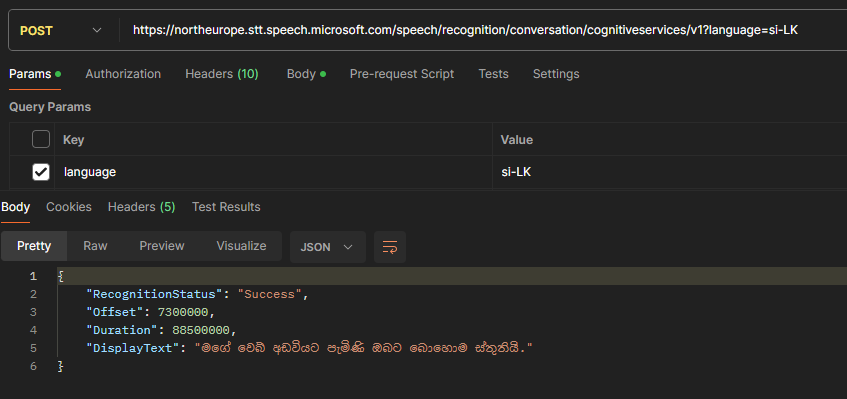
And some Swedish. Even with my pretty bad accent, it understood what I said! 😎

Azure function
I’m not going into more details on how to create the azure function here. Some key components required are
- Function worker: Net 8.0 Isolated
- NuGet packages: Microsoft.CognitiveServices.Speech, Newtonsoft.Json
- Make sure you add the ffmpeg.exe to your project and set the property Copy to Output Directory = Copy always
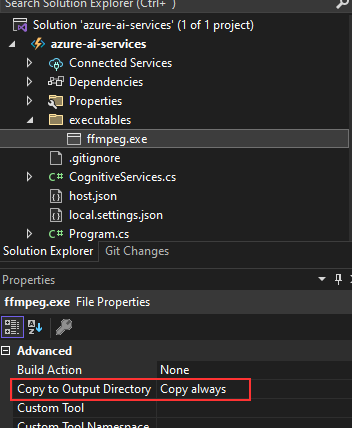
Check below video on how to execute an exe in a Azure function
Here’s my azure function
References
 DSJ's Blog
Leave a comment