There were several comments on my last post on How to Include additional attachments in e-mail reports in IFS Cloud whether it’s possible to send an email using a workflow. I have done testing and seems it’s possible! This post explains the steps I took to make it work.
- Entity and Projection Configuration
- Creating the Workflow and Event
- Design the workflow
- Trigger the Workflow
I couldn’t find a standard projection action which exposed the Command_SYS.mail procedure so I decided to create a custom entity and a custom projection. It’s possible to add this to any existing projection as well but since sending mail is a common function, I thought it could be good to have it separately so we could use the send mail functionality without affecting other business areas.
Entity and Projection Configuration
Create an Entity configuration with a dummy field and publish.

Go to New Projection Configuration assistant and create a projection using above entity. Under Custom actions, add Command_SYS.mail

Creating the Workflow and Event
In this example I used a pretty simple scenario where an email will be sent when Customer name is modified.
Create a new Workflow

Deploy the workflow
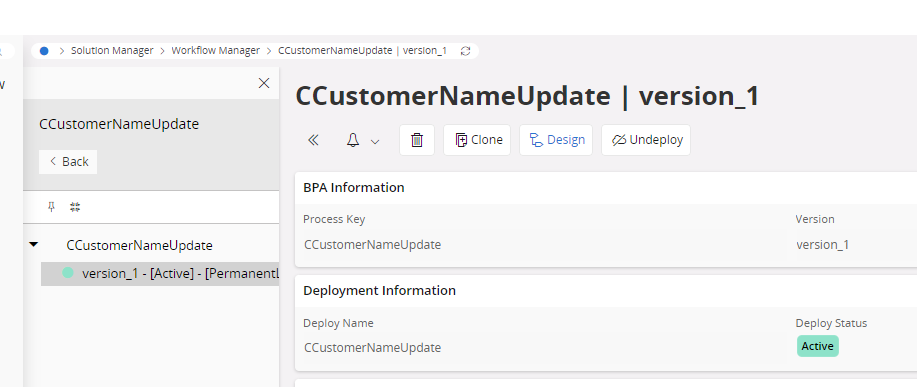
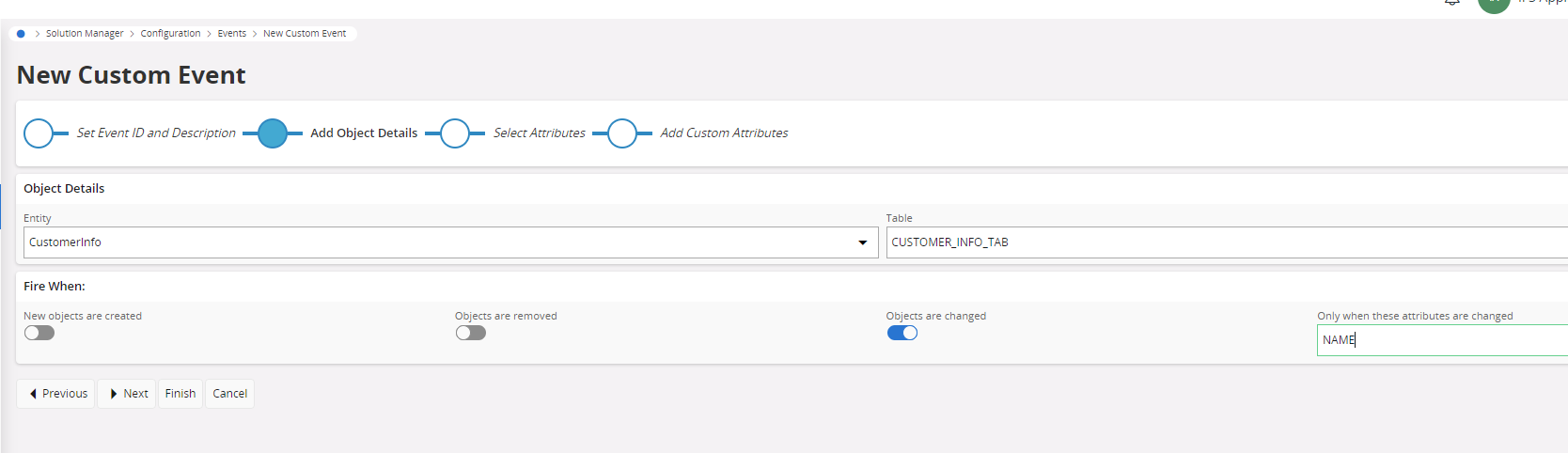
Create a new Custom Event based on CustomerInfo entity and CUSTOMER_INFO_TAB.

Select Fire When as Objects are changed and add NAME as the attribute to change so our event will trigger only when the Customer name is changed.
Create a new action of type Workflow
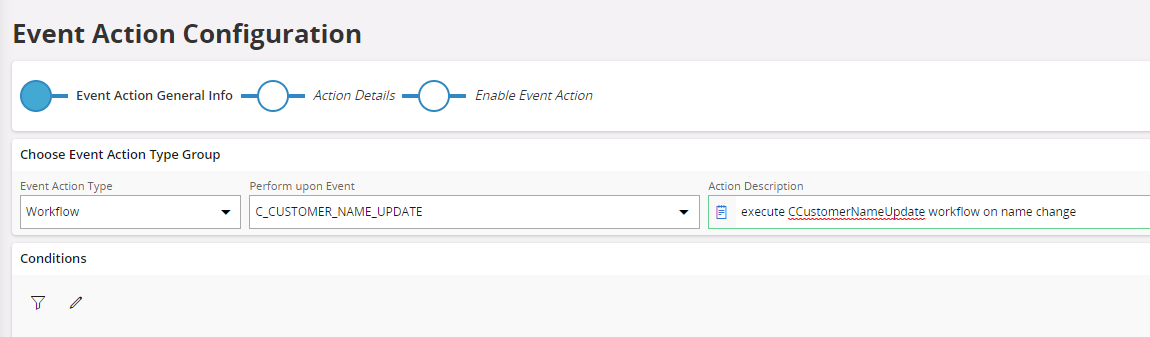
Provide the Workflow ID create in above and set the timing as Asynchronous.
Asynchronous means any error in the workflow is not affect the main transaction. It’s the most suitable option for this type of workflows where it needs to create some records in the database, in this case, an application message.
Save event action and set the event to Active

Design the workflow
Clone and create a new version of your workflow.

Go to Design and Add a task and change the type to IFS Projection.
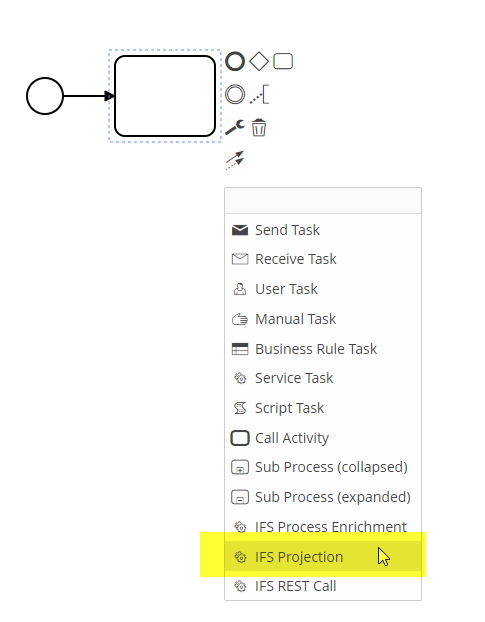
In the IFS projection properties, select the Custom Projection and the action created above.
I was too lazy to fetch the values from event itself so used hard coded values here. But you can use values from the event as parameters.

Deploy the workflow version.
Trigger the Workflow
Go to Customer page and do a change in the customer name which triggers the workflow.
Since there was no Mail sender defined in my environment, I didn’t get the mail but got the Application Message to prove that the workflow is working fine 😎

Sending email with attachment is something needs to investigate further. Will get back more on that soon.
Please comment your thoughts and questions below!
 DSJ's Blog
Hello Damith,
How do I enter which Mail Sender to be used? I entered it in From_Alias_ field but still using the default mail sender.
I created an HTML email body in the script task. From_Alias_ has my mail sender which has text type text/html. However, the user gets with the tags because email is sent with default sender.
Thanks
Furkan
Hi Furkan,
Really sorry for the late reply. I checked the Command_SYS.mail procedure and the override which supports in the workflow does not have an in parameter for sender instant. Unfortunately this seems to be a limitation.
You might turn back to SQL event action type if changing the sender is really important. below override of Command_SYS.Mail has an in parameter for the mail sender (parameter mail_sender_)
PROCEDURE Mail(
sender_ IN VARCHAR2,
from_ IN VARCHAR2,
to_list_ IN VARCHAR2,
cc_list_ IN VARCHAR2 DEFAULT NULL,
bcc_list_ IN VARCHAR2 DEFAULT NULL,
subject_ IN VARCHAR2,
text_ IN CLOB,
attachments_ attachment_arr,
mail_sender_ IN VARCHAR2 DEFAULT NULL)
Very Interesting the work that you are doing here.
Where you able to attache files to the email please?
Hi NG,
Glad you found the post interesting 🙂
Method signature of Command_SYS.Mail which would added here accepts only one string type attachment. It would help to create and attach text type attachment such as a csv along with the email.
I haven’t tried out myself yet but what you would need is
* Create the attachment using a script task and store in a variable.
* Concat the file name. Final attachment variable should be in this format [FILE_NAME].[EXTENTION]=[ATTACHMENT_CONTENT]
* put into a execution variable and add it in the Attach_ parameter in the projection call
Hope it helps!
Damith