How to install TP-Link Nano WLAN USB adapter on Raspberry Pi 2B

Raspberry Pi 2B doesn’t have a inbuilt WLAN interface so I’m using TP-Link Nano WLAN usb adapter to connect to internet. Raspberry Pi OS (Raspbian) does not have a default driver for TP-Link nano, so every time I reset my Pi, it’s a little hassle to setup the Wi-Fi.

I’m a Linux dummy so every time I had to google search the forum threads to do this. Therefore in this post, I’ve listed all the steps needed to setup the driver, how to enable SSH and connect remotely for my own reference. Hope it will help you somehow 😎

Note 2024-01-01:
I wanted to upgrade my Raspberry Pi OS for some new experiments new year and noted that Fars Robotics Wi-Fi Drivers was down. Therefore, further reading this article won’t be much of a help. I’ve found this awesome gist which solved the problem for me. Give a try with that instead. Good luck!

# DO NOT PUT THE WIFI DONGLE IN THE DEVICE BEFORE MENTIONED EXPLICITLY BELOW
# Brief note, after this the UI will not show the usb dongle,
# the wifi does work and I get an IP address, so all works,
# but I don't go into detail of making it show on the Raspbian UI.
# (for this purpose I don't care about the UI)
# For the use of this I connected my device to an ethernet connection and through the Router could see the IP which I can SSH into.
## STEP 1: Prepare machine and install packages needed
# Make sure the system is up to date and all that needs to be installed is installed
`sudo apt-get update && sudo apt-get install -f`
# I also upgrade my distro, but this step can be skipped
`sudo apt-get dist-upgrade`
# Install some necessary packages as we will build the source firmware ourselves
`sudo apt-get install -y build-essential git`
# There is a package for raspberry pi to add the kernel headers, so you can pick one here (if one doesn't work, use the other)
`sudo apt-get install -y linux-headers`
`sudo apt-get install -y raspberrypi-kernel-headers`
# reboot for changes to take effect
`sudo reboot`
## STEP 2: Get and install the firmware for TP-Link-WN725N Nano
# Download the Github package (for best support use git clone instead of zip)
# I just put this on my home folder as I am not using this RPI for any other purpose than a livecam
`git clone https://github.com/lwfinger/rtl8188eu.git`
# Go into the new folder
`cd rtl8188eu`
# Make the source for your machine
`make`
# Install the firmware that was just build for your machine
`sudo make install`
# Reboot for changes to take effect
`sudo reboot`
# Shutdown now as we need to have the usb dongle in the RPI on startup
`sudo shutdown -h now`
## STEP 3: (INSERT USB DONGLE BEFORE CONTINUING) Check if dongle is recognized by the system
# After starting your rpi check if it now recognizes your wifi dongle
`lsusb`
# This should show something like `BUS 00X …. REALTEK… RTL8188EUS… Wireless Network Adapter`
# Great your wifi dongle is now recognised. If not, you probably don't have this dongle or you need to repeat the above steps.
# Check if modules are being loaded
`lsmod`
# Search for something like `8188eu … 0`
# Check if wlan0 is present
`ifconfig -a`
# There should be quite some output next to and under `wlan0`, if there's an IP address already visible, skip all next steps it's working.
## STEP 4: Setup wifi settings
# Add wifi settings
`sudo vi /etc/network/interfaces`
# Search for `auto wlan0` at the start, if it's not there, add it and keep the file open
# Make sure it knows where to find the wpa config
# Add these lines to the bottom of the same file:
“`
allow-hotplug wlan0
iface wlan0 inet dhcp
wpa-conf /etc/wpa_supplicant/wpa_supplicant.conf
iface default inet dhcp
“`
## STEP 5: Connect to wifi
# The file `wpa_supplicant.conf` might already exist and might have some lines, add these below:
“`
network={
ssid="YOUR_NETWORK_NAME"
psk="YOUR_NETWORK_PASSWORD"
proto=RSN
key_mgmt=WPA-PSK
pairwise=CCMP
auth_alg=OPEN
}
“`
# Replace `YOUR_NETWORK_NAME` & `YOUR_NETWORK_PASSWORD` with your own credentials.
# Reboot and connect
`sudo reboot`
# To test after reboot if your wifi is working, you can open the browser or go to the terminal
`ifconfig -a`
# This will now have an ip-address next to `wlan0` which you can use for ssh or whatever.
# Congrats!
## Resources used:
# The dongle on Amazon: https://www.amazon.de/TP-Link-TL-WN725N-Adapter-Suitable-10-9-10-13/dp/B008IFXQFU/
# The Firmware: https://github.com/lwfinger/rtl8188eu
# Troubleshooting on RPI: https://www.raspberrypi.org/forums/viewtopic.php?t=44044
# Wifi auto connect on RPI: https://weworkweplay.com/play/automatically-connect-a-raspberry-pi-to-a-wifi-network/
# Extra resource for rpi-source: https://blog.samat.org/2014/12/15/realtek-8188eu-based-wi-fi-adapters-on-the-raspberry-pi/

Finding the Correct TP-Link Driver Version for your Pi

Open a terminal and type

uname - a

This will print the Linux version

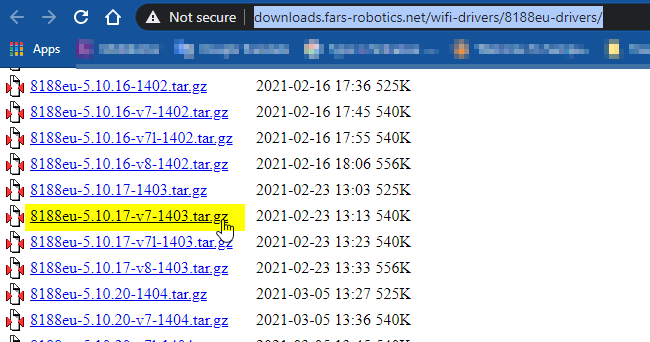
Version installed in my Pi is 5.10.17-v7 #1403

Get the Driver Version

Once you found the Linux version, download the correct driver to the PC (I’m using Windows) from Fars Robotics Wi-Fi Drivers.

Driver name is defined with the Linux version so it’s important to get the correct driver for the Linux build

driver name: 8188eu-[LINUX VERSION].tar.gz

Download the driver and transfer to Pi using usb stick

Install the Driver

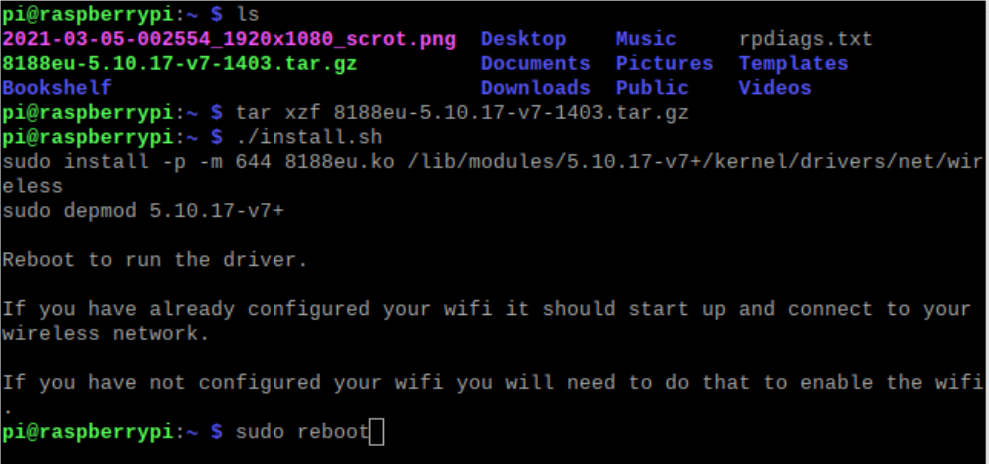
I’ve copied the file to the home directory. Open terminal and type following commands to extract and install. Once the driver is installed, reboot Pi.

tar xzf  8188eu-[LINUX VERSION].tar.gz
./install.sh
sudo reboot

Once the Pi is rebooted, you should see the available Wi-Fi networks in top right corner.

Enable SSH

Open terminal and type

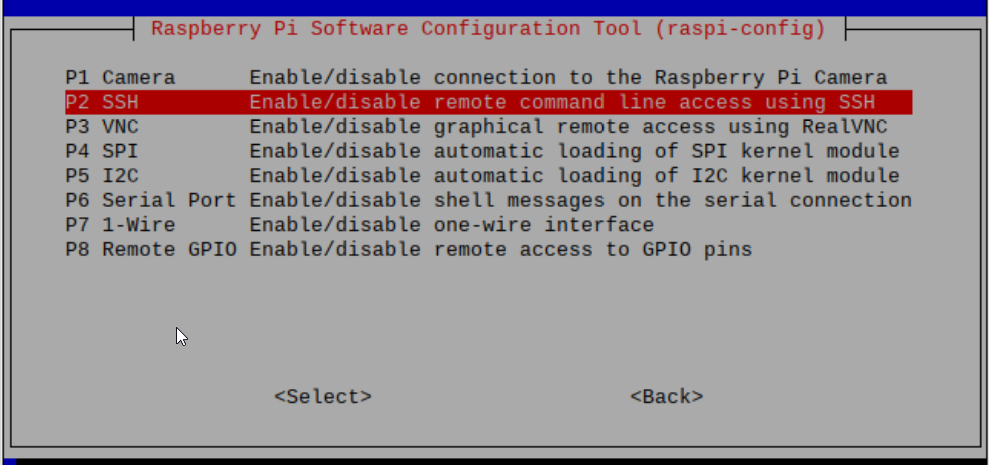
sudo raspi-config

Go to Interface Options –> P2 SSH, Enable SSH

then type ifconfig in terminal to find the IP of your Pi.

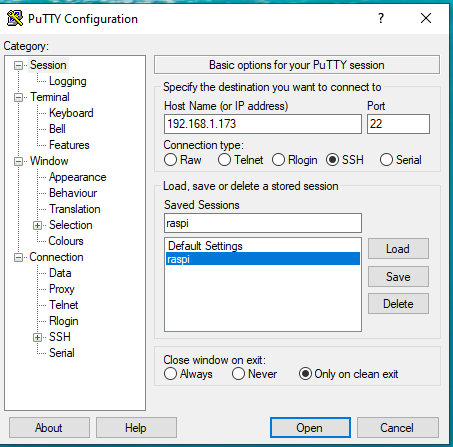
Go to windows, open Putty (Download Link) and open a session

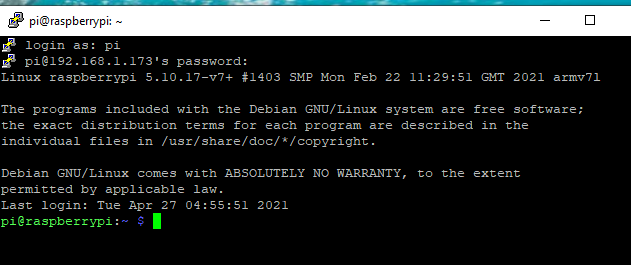
username: pi

password: password given when you setup Pi

Now you are connected to the Pi!

4 thoughts on “How to install TP-Link Nano WLAN USB adapter on Raspberry Pi 2B

Add yours

  1. Thanks for sharing this documentation. I’ve:
    Linux raspberrypi 5.10.63-v7+ #1496 SMP Wed Dec 1 15:58:11 GMT 2021 armv7l GNU/Linux
    but latest version on the mentioned website is:
    8188eu-5.10.63-v7l-1460.tar.gz 2021-10-13 20:21 540K

    Is there any other website where I can find the correct driver of my version?

  2. Wow I can not thank you enough! Every other tutorial I was following made me go download some random person’s github firmware and it never worked. This tutorial was for the exact same model of wifi adapter I have, what a lifesaver. Done in 5 minutes. Thanks.

Leave a comment

Website Powered by WordPress.com.

Up ↑