This is one of the fundamental questions every customer asks when they see a Operational report such as Order Confirmation, Invoice …etc. is printed from IFS. Only a very small setup needed for changing the default report logo, but there are several hacks you can do with the logo, and it’s possible to change the logo of a report based on different conditions. This post will be guiding on how to change the logo globally, and several configurations can be done to change the report logo based on different conditions.
This post is intended for IFS Cloud but similar thing can be done in Apps 10 as well.
In this post…
- Changing the Logo for All Reports
- Changing the Logo Based on Company
- Setting Logo Based on Other Conditions
- Conclusion
Changing the Logo for All Reports
It is possible to change the logo for all reports with one small setting change. Before doing this, make sure you have a high quality image of your company logo with you and it can be in any major image formats. But make sure to use a image of decent size (ideally in 100s of KB) to have a better printing performance.
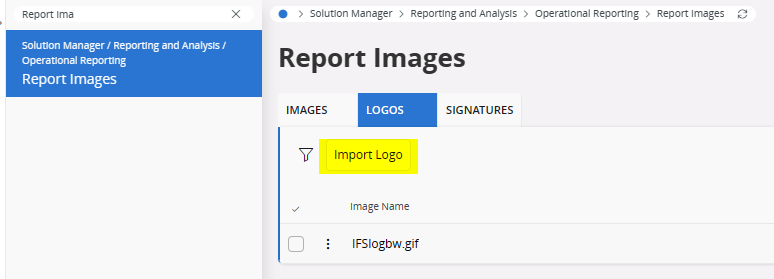
In order to change the logo for all reports, go to Report Images, Logos tab and Import Logo.
Drop your company logo.
Set the Image name as complogo.gif
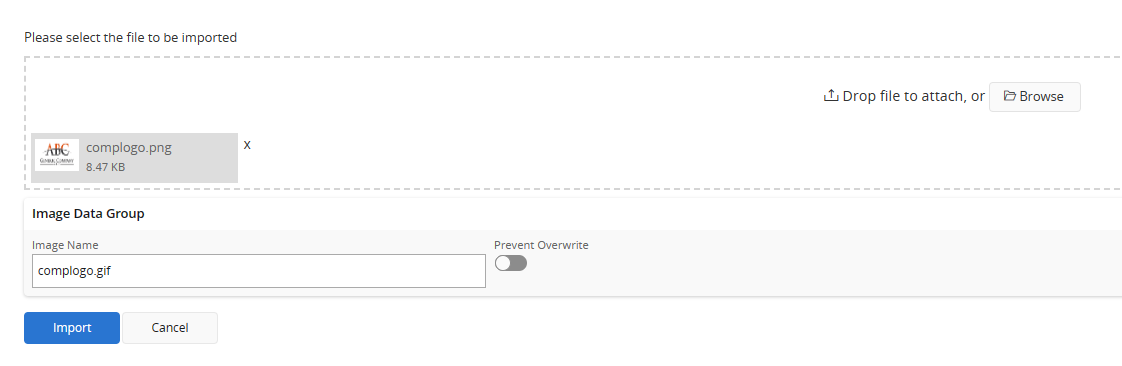
Note: Image name complogo is important and it's case sensitive. Even though your logo is in a different format, it's required to use the .gif extension.
That’s all you need to do to setup the default logo for IFS reports!
Changing the Logo Based on Company
Many standard IFS reports has the possibility of using different logos based on company which the record you are printing is belonging to. This is done using a company level setting, and not applicable for all IFS reports. It’s a pretty useful feature for multi-company setup where different companies have different logos.
To do this, import the logos for companies in Report Images window as we did above, but DO NOT use complogo.gif as the image name. You can use desired report name and file extension.
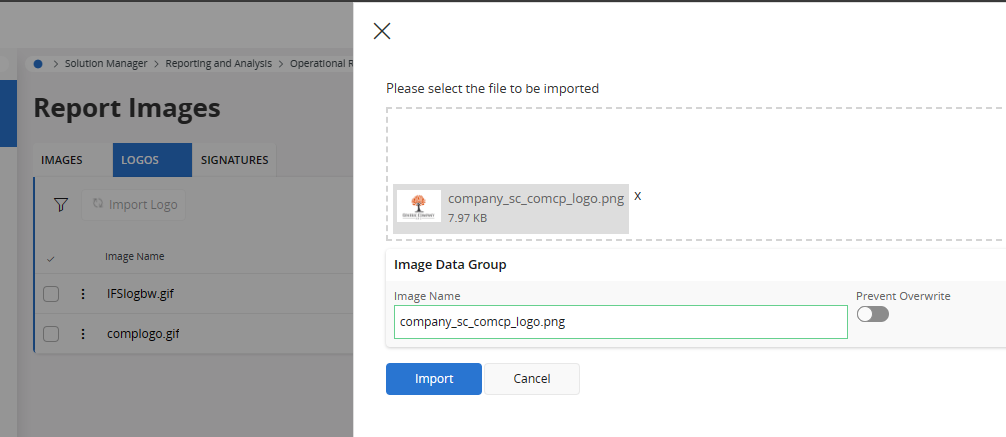
remember the Image name you provided since we need it in the next step.
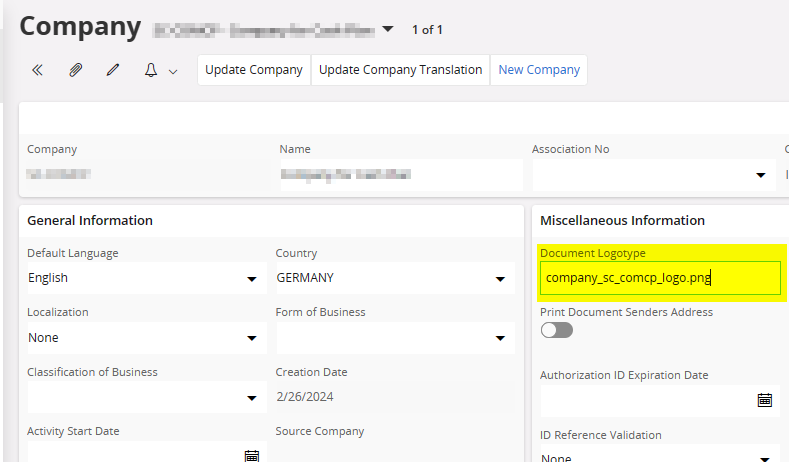
Go to Company page. Add the Image name in the Document LogoType field.
Setting Logo Based on Other Conditions
Even though above are the out-of-the-box options to change the report logo, it’s possible to do vast variety of changes using Report Rules. For example you can use different logos for different reports, or change the logo of the same report based on conditions.
Important: We are using the Archive variable rhSysLogo to set the logo from report rule. Note that in order to work this configuration, you should not set Document LogoType in the company level, since that will override the value set by the report rule.
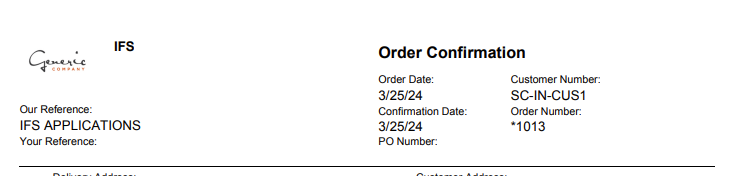
In this example, we’ll see how to change the logo of Customer Order Confirmation based on Site.
First thing is to import the logos from the Report Images page.
I have imported two logos to be used for different sites.
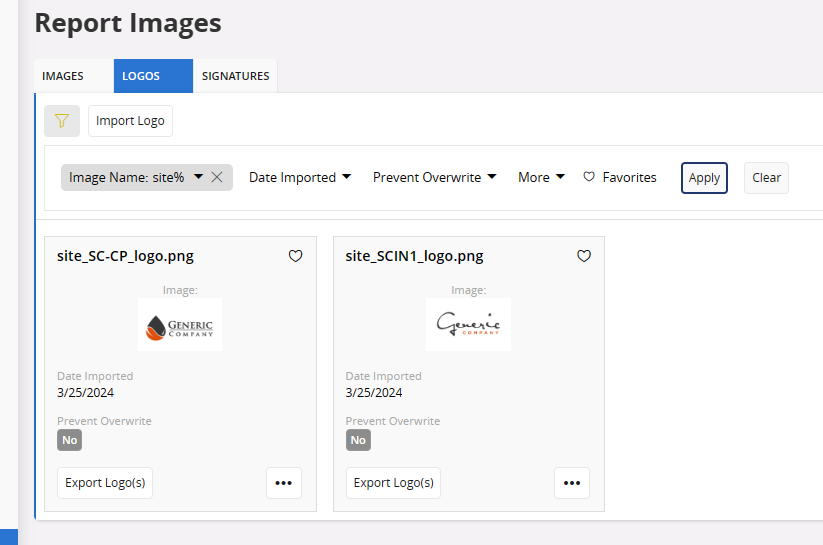
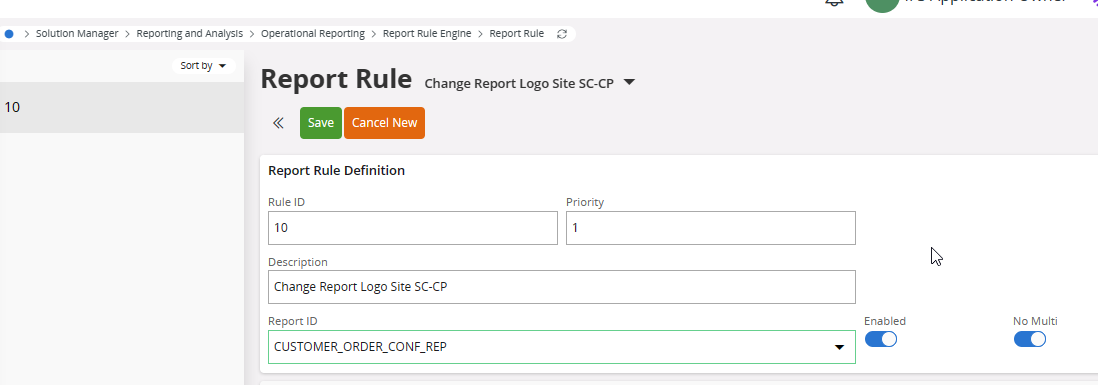
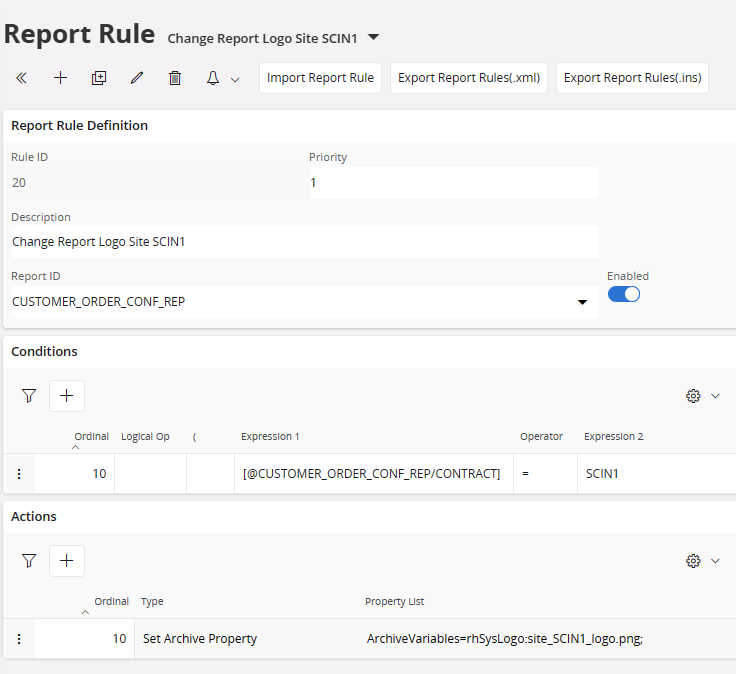
Go to the Report Rule page and create a new rule. Choose the report ID as CUSTOMER_ORDER_CONF_REP which is Customer Order Confirmation and give the rule a description and save.
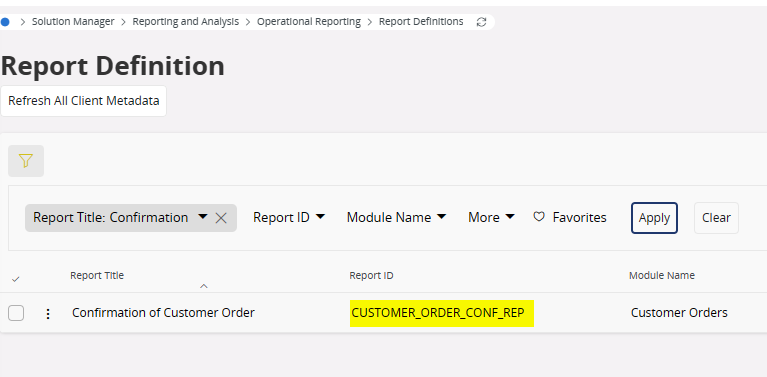
Tip: If you don't know how to find the Report ID, go to Report Definitions page and search for the Report title. Form there you can find the correct Report ID.
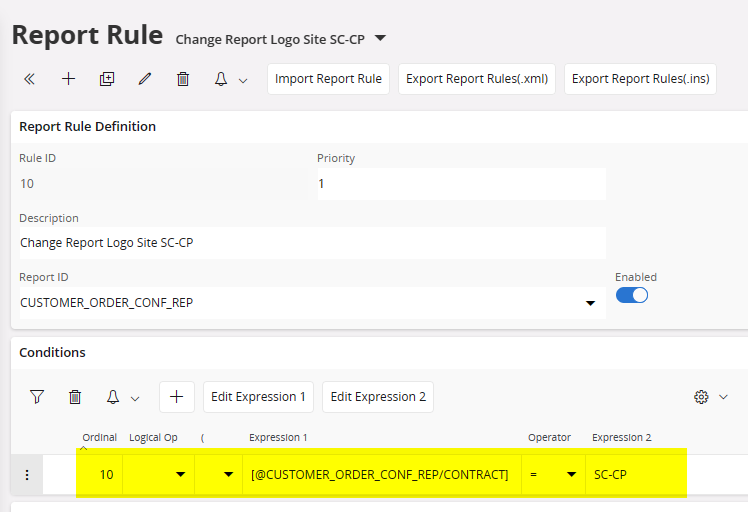
In the Report Rule Conditions, Add a new condition.
Click on Edit Expression 1, and add the CONTRACT from the XPath.
Add = as Operator and in the Expression 2, mention the Site ID you want the logo to be used.
Now add a new Action and select Set Archive Property as the Action Name.
Set the Archive variable value as rhSysLogo:<IMAGE_NAME> where the <IMAGE_NAME> is what we have imported to the site above.
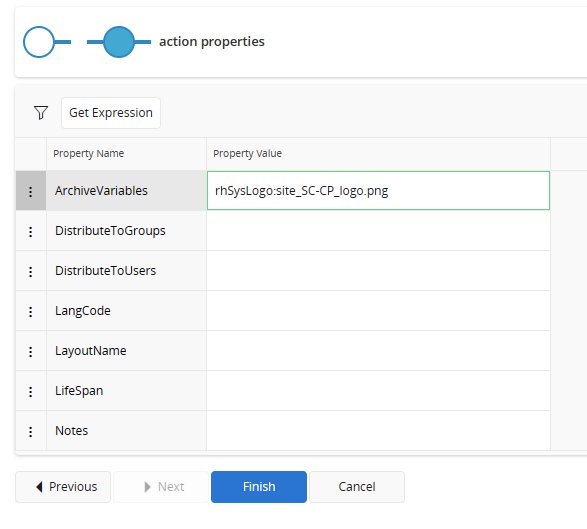
Create another report rule for the other site the same way
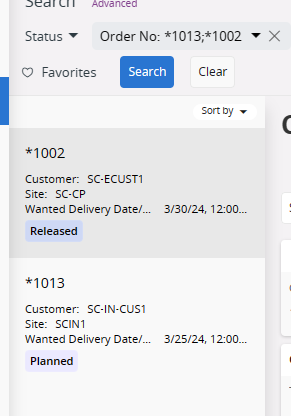
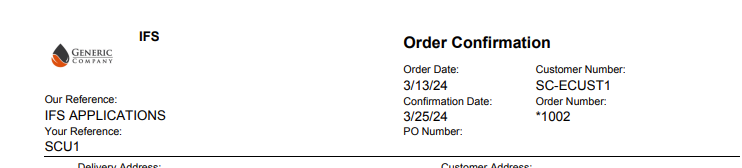
In this example, Order *1002 is from Site SC-CP, and Order *1013 from Site SCIN1
Conclusion
Customizing the logo used in operational reports is a fundamental requirement for any IFS customer and this post describes several different ways of easily configuring the report logo according to customer need. With the combination of Report Rules, it’s possible to conditionally change the report logo which could be used in many different use cases.
Hope this post will be useful for anyone seeking guidance with IFS report logos. Please comment your thoughts and share if you find it useful.
Content Credentials
- Images used in this post are downloaded from: https://atelierlks.com/stunning-examples-fake-logos/
- Cover image generated by DALL-E 3
 DSJ's Blog
Thank you for your response.
We need to add additional fields to a standard operational report, and those fields require some custom logic.
In IFS Apps 10, this was handled using a shortcut by directly modifying the
.rpifile, without the need to update the report model or RDF. However, in IFS Cloud, we do not have direct database access, so this approach is no longer applicable.One possible solution I have identified is as follows:
Could you please confirm whether this approach is recommended in IFS Cloud, or advise if there is a better or supported method to achieve this customization?
Looking forward to your guidance.
Hi DSJ,
I’ve been following your blogs, and they’ve helped me many times—thank you for that.
I have a question regarding report customization. The standard report output is in PDF format, but the user requires the output in Excel. There are additional fields that need to be added to populate calculated data (such as accumulated credit, etc.). The user does not want to click or trigger anything in Excel, so using Excel formulas is not an option.
The .rdf/report is always a non-layered file. We are currently on APPS 10, where I implemented changes in the .rpi file. However, we are moving to the cloud (25R1), and those .rpi changes will no longer work because IFS does not allow them.
In this case:
How can this customization be handled in the cloud environment?
How can this be done through Developer Studio?
If I customize only the .rdf with my changes (similar to what I previously did in .rpi) and then push it to GitHub, will IFS allow it?
Hi,
Thanks a lot for following my blog.
Report customizations to .rpi file can be done in IFS Cloud as well the same way you did in Apps10.
But the excel plugin is deprecated in Cloud and you can’t export the report as Excel.
Therefore I recommend to report this as a gap in the IFS Cloud upgrade and ask for IFS recommendation to achieve this.
Hi DJ,I’ve been following your blogs, and they’ve helped me many times—thank you for that.I have a question regarding report customization. I need to customize a standard report where the default output layout is PDF, but the user requires the output in Excel. There are additional fields that need to be added to populate calculated data (such as accumulated credit, etc.). The user does not want to click or trigger anything in Excel, so using Excel formulas is not an option.We are currently on APPS 10, where I made changes in the .rpi file. However, we are moving to the cloud (25R1), and those .rpi changes will no longer work because IFS does not allow modifications there.Given that the RDF/report is a non-layered file, how can this customization be achieved in the cloud environment?
Hi,
Thanks for all your help, but I have some questions about IFS9.
I want to do same thing on IFS9 but I didn’t anyway.
Any information or documentation on for IFS9.
Thanx.
Hi Damith, how to deliver the report rule xml in other environment . Is there specific folder we have from where installer will import it in application with delivery or it there any other way.
Normally you can export from one environment and import into the next environment. As of now, report rules cannot be added to Application Configuration Packages, but export/import should work well.
Thanks for the explanation Ausan.
There’s an option to export report rules as .ins file as well.
If you export the report rule as .ins and include in the workspace component \database folder, it should be able to deploy via installer.
Unfortunately I haven’t try that method. Export/Import is what I have also used so far 🙂